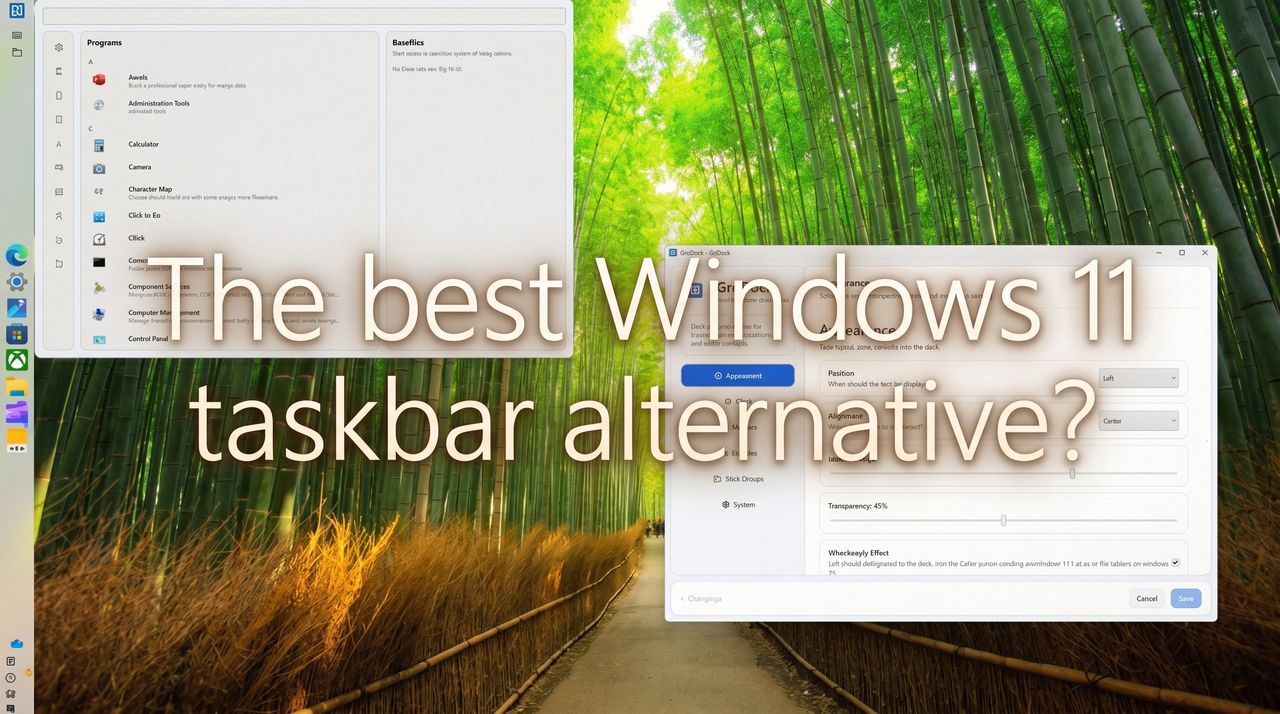
Windows 11 might be regaining its movable taskbar after plenty of outcry from the Windows community, but that doesn't mean it's perfect for all users.
Personally, I don't mind the regular Windows 11 taskbar, although I have tweaked it in the past with ExplorerPatcher. However, while traveling around the web, I came across GroDock, and it finally made me realize what I've been missing.
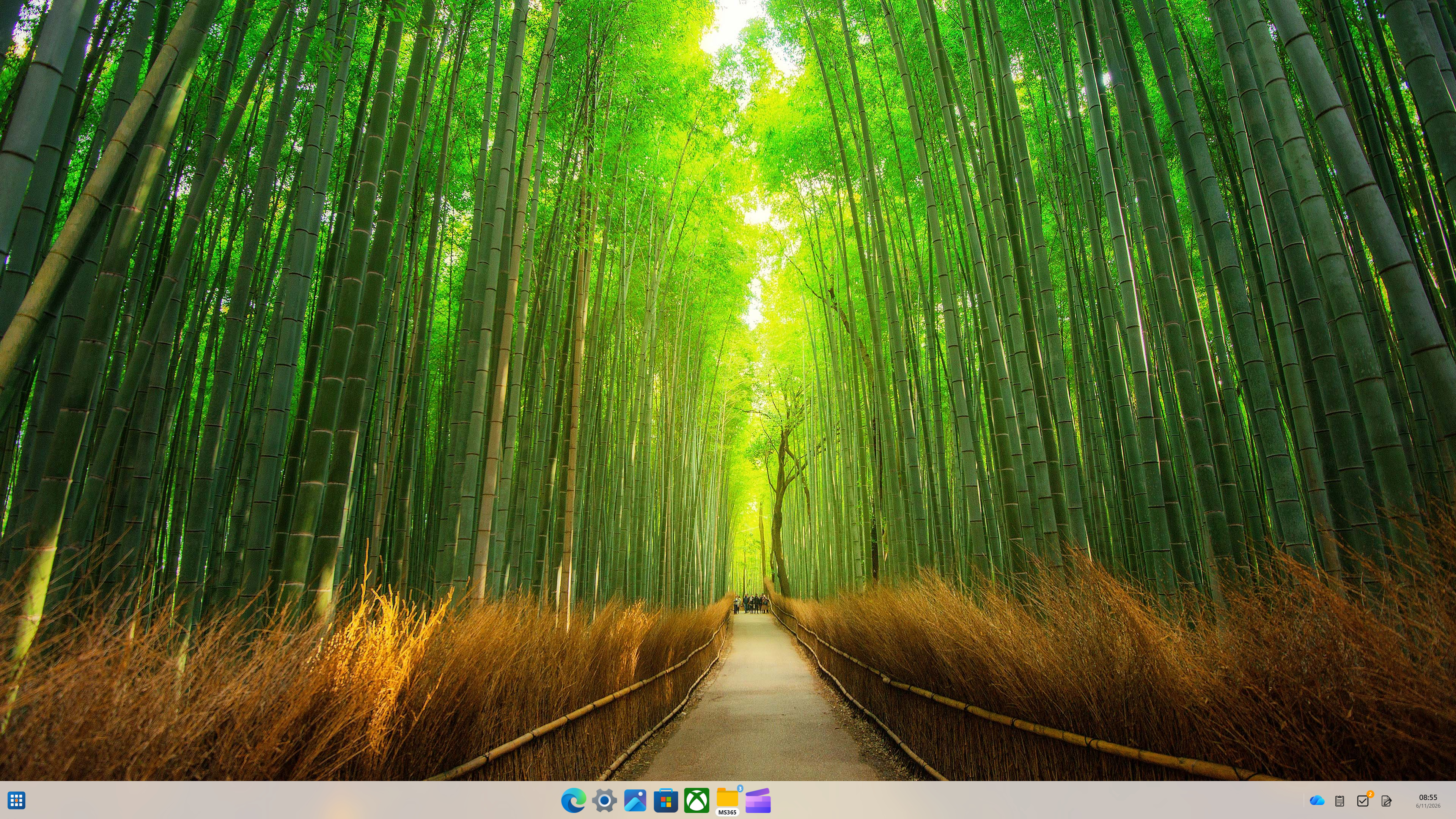
GroDock is a customizable Windows 11 taskbar alternative with additional docking capabilities for apps. It's like a productivity hub that I never knew I needed.
While it doesn't completely override the native taskbar, it has certainly proven to be capable enough for me to hide the Windows version entirely.
GroDock comes from a solo hobby developer known as "Groad," and their collection of custom apps encompasses Windows, macOS, iOS, Android, and more. GroDock is available for free for 7 days as an introductory trial; after that, it costs $4.99 to keep forever. Here's why that one-time cost might be worth it for you.
What can GroDock do that the Windows 11 taskbar cannot?
Let me start by highlighting some of GroDock's more enticing customization options.
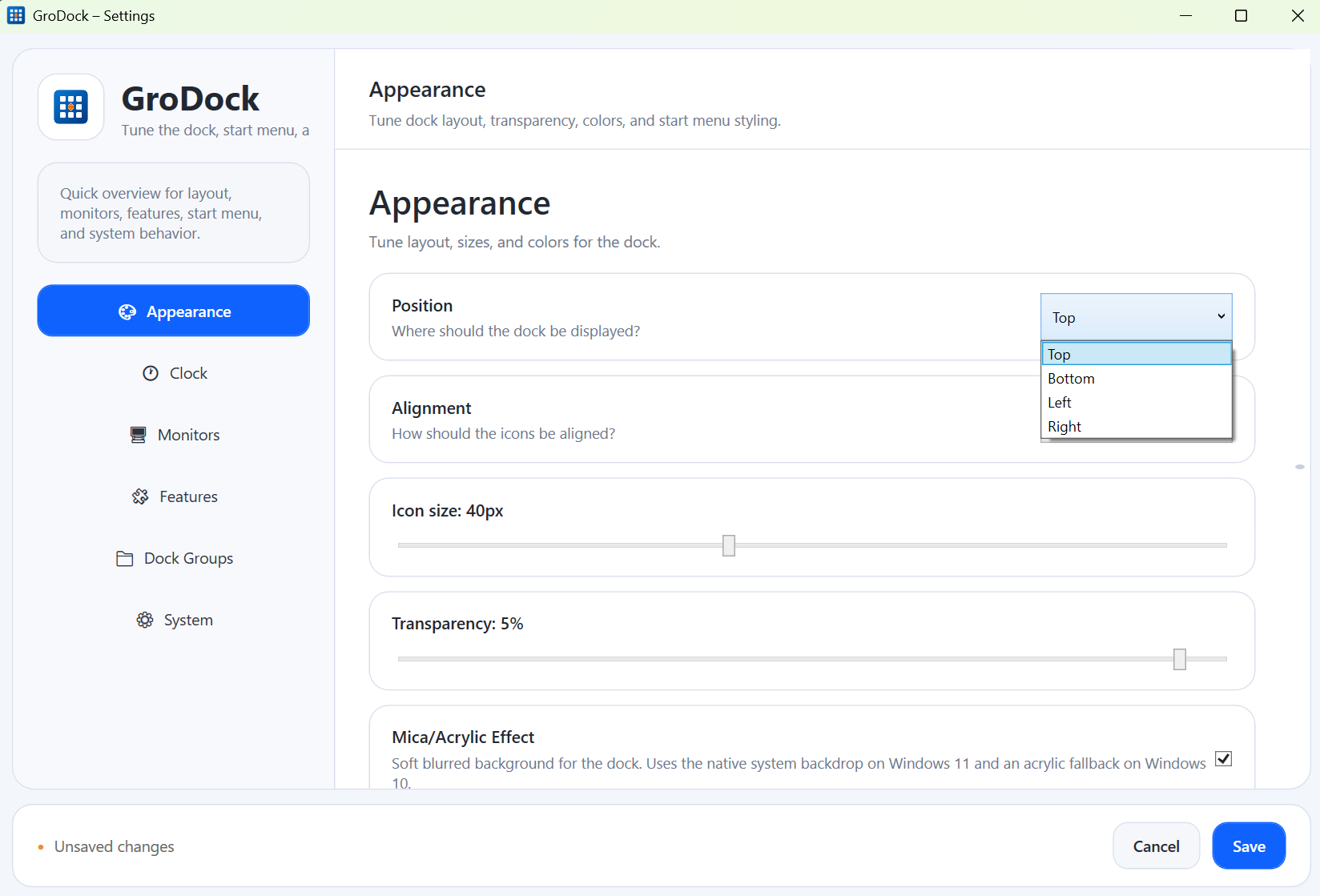
You can position the bar along the top, bottom, left, or right side of your screen, and you can also choose icon alignment to be centered or off to the left or right of the bar.
Icon sizes, taskbar transparency, mica effects, theme colors, text colors, Start button logo, and hex colors can all be tweaked to your liking.
The clock is fully customizable, and in the most recent update, a calendar was added with a per-day agenda feature.
Did I mention GroDock supports multi-monitor setups? Yes, you can choose which monitors the custom taskbar shows up on.
Something I absolutely love and find super useful as someone who's constantly copy-pasting is an optional Clipboard history icon. You can even choose how many entries you want to show in the widget.
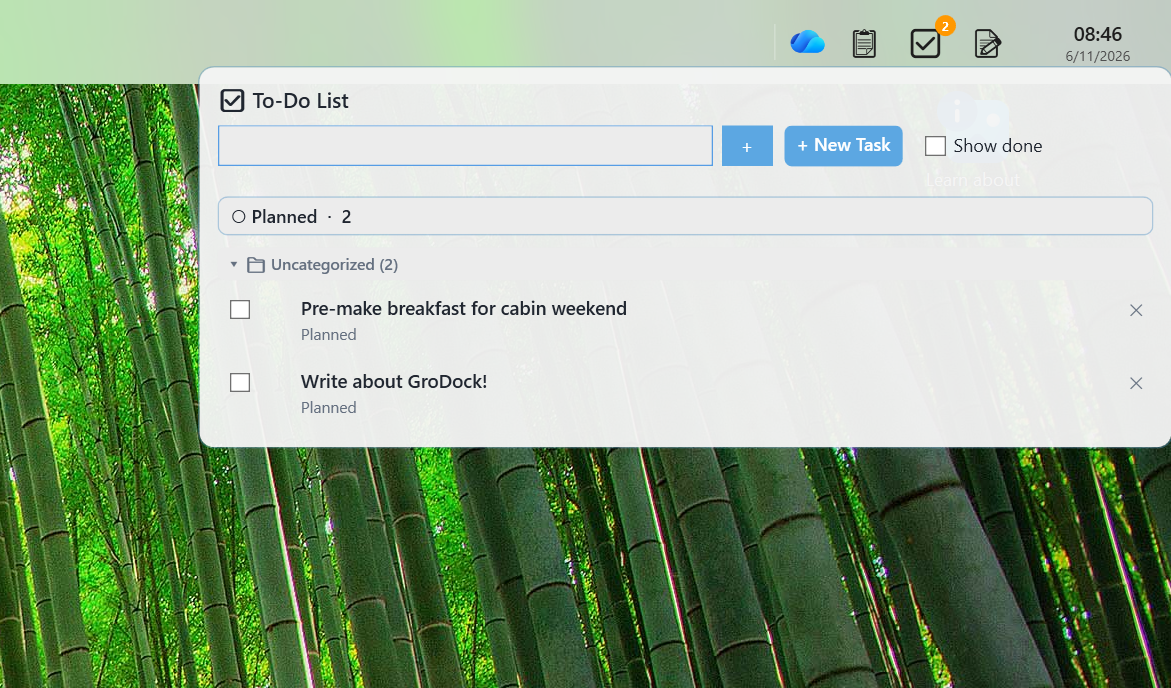
GroDock also offers an optional kanban board for To-Do lists, a basic notepad feature to jot down ideas, a code snippet repository, and a timer to keep track of how long you've been at a task.
Other optional features include system volume, screen brightness (per monitor, to boot), network info, battery life for laptops, USB devices, and more. Just like the regular Windows taskbar, but completely customizable.
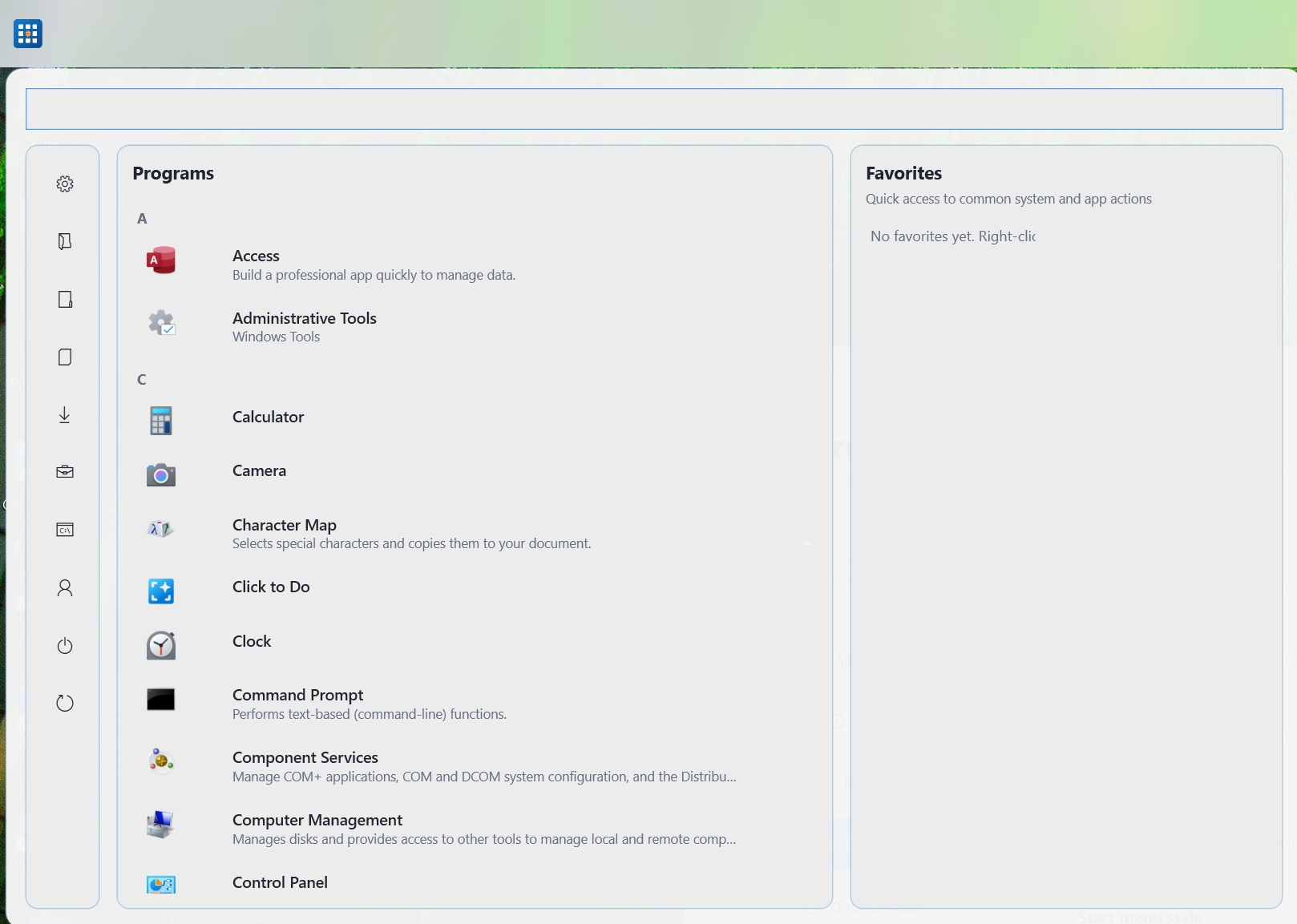
Perhaps my favorite feature is the customizable Start menu style. The Classic version has cascading menus, while the Explorer version shows more options right from the start. The Modern option is more like a scrollable list of apps with a favorites section nearby.
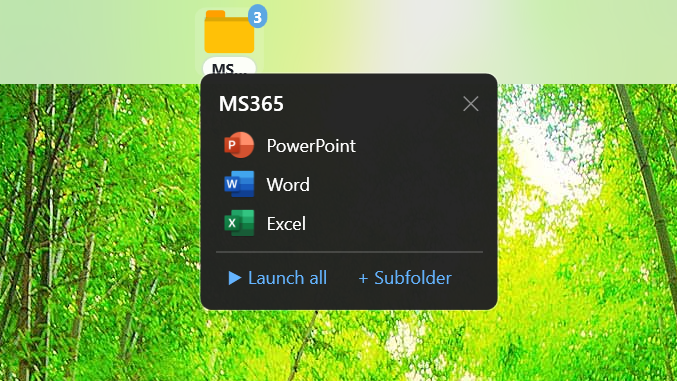
And finally, customizable dock groups make it easy to keep your desktop clean and your favorite apps immediately accessible. You can create any number of dock groups and add any sort of apps you want to those groups, super useful for productivity aficionados.
Why use GroDock instead of the native Windows 11 taskbar?
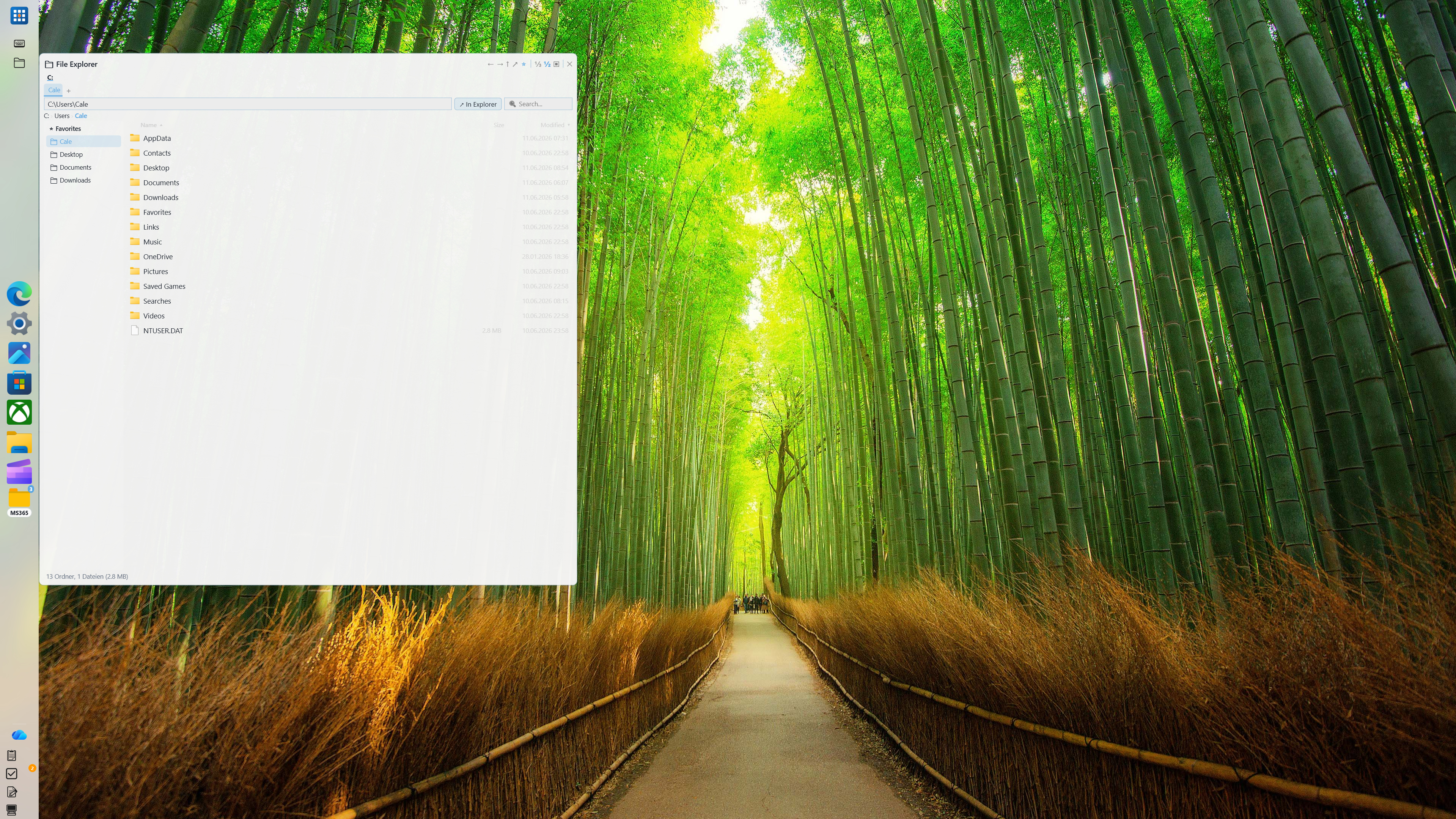
Windows 11's taskbar is straightforward and familiar. For a lot of Windows users, that's good enough.
But as someone who spends 8+ hours a day at my PC, turning the taskbar into a true productivity tool is well worth the $5 price tag. It's essentially a central command hub for my PC, totally customizable to my liking, giving me far more control and ease of access than I've ever had before.
Something I'm sure a lot of users will appreciate is that it doesn't completely override the native taskbar. You can use GroDock as a complement to the Windows 11 taskbar, or you can use it as a total replacement.
Best part? As mentioned, you can try it out for free for 7 days. If it's not quite what you need, you never have to touch it again. And if it is too good to pass up, as I found out, the one-time $5 cost really isn't too steep.
Join us on Reddit at r/WindowsCentral to share your insights and discuss our latest news, reviews, and more.