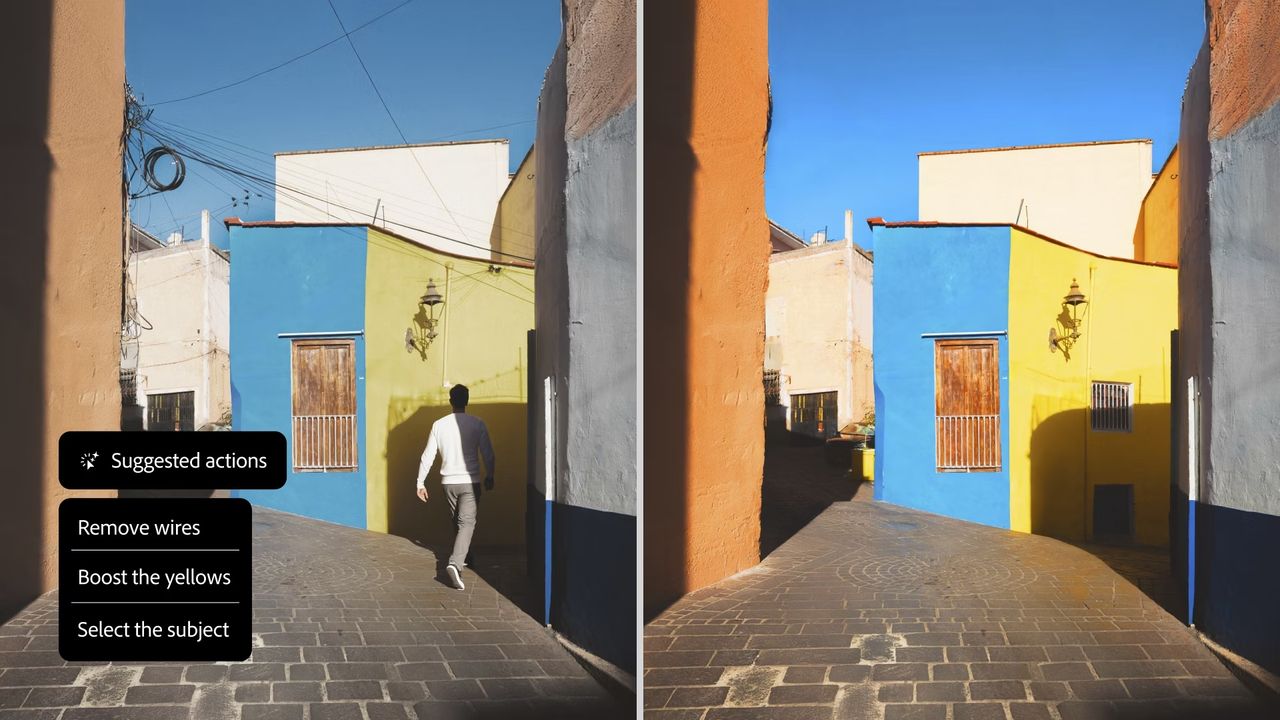
You'll need photoshop actions if you want to touch up your photography or add a creative flair to your design. Adobe's industry-standard image editing software is a staple for many creatives and making use of Photoshop action bundles can streamline your workflow, allowing you to focus on fine-tuning your work to perfection.
You can create your own actions to replace repeating the same processes every time, or you can import bundles to explore new creative ideas. Thankfully there are plenty of options available to download for free. To get you started check out our guide on how to download Photoshop and take a look at the best Photoshop tutorials for handy tips and tricks to optimise your workflow.
The new Photoshop Actions panel
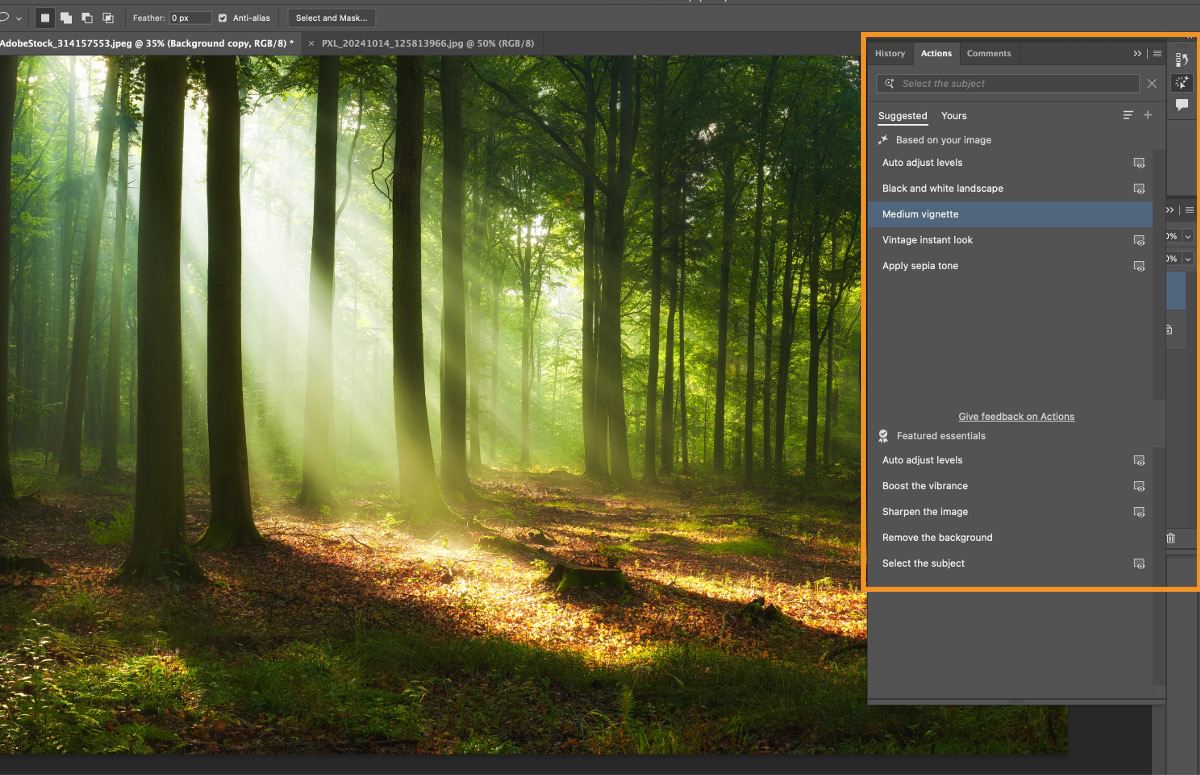
Adobe has overhauled the Actions panel in the beta desktop version of Photoshop, and the software now comes with lots of free Photoshop actions included. It's also now much easier to find an appropriate inbuilt action without having to know what they all do.
There's a text field where you can simply type what you want to achieve using natural language. For example, type 'Make it pop' (or something more original), and Photoshop will suggest ready-made actions that might best help you achieve what you want, such as 'Increase saturation' and 'Add a strong contrast'.
Some of these free Photoshop actions are very simple, involving just a single adjustment layer, but they could save you time by reducing the need to hunt through tools and adjustment options to find what you want.
The Actions panel also now analyses your image and will suggest an initial five edits to get you started. Not that some of these may not be relevant to what you want to do, and they sometimes push you to use generative AI for things like generating new backgrounds. To use the traditional Photoshop actions of old, click on the actions panel menu and then 'Classic actions'.
See the deals below to get the latest version of Photoshop.
Free Photoshop actions: Photo filters
01. Coffeeshop

Coffeeshop actions soften your photos, creating a sense of depth and visual intrigue. These filters can add an aura of romance to wedding photos, or give children's portraits a feeling of innocence and tenderness. The actions can help make your photo lighting appear more dynamic or make alterations to level out skin tone and imperfections. Whether you're a novice or a professional, the Coffeeshop actions are a useful addition to make photo editing easier.
02. Cross Process

Next up on our free Photoshop actions roundup is this cross-processing effect. Cross-processing means deliberately processing one type of film in a chemical solution intended for another, resulting in oddly skewed colours and increased contrast and saturation. This collection includes six different cross process effects. We especially like the rich vibrant tone of the example pictured above (action number two of the collection).
03. Winter Blues
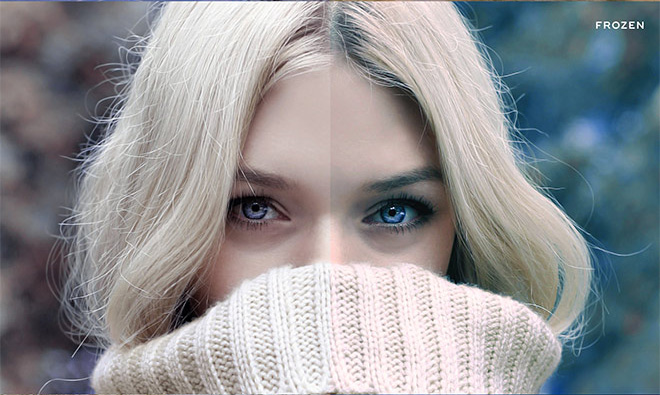
At the other end of the temperature scale, these Winter Blues photo effects are designed to add some wintry magic to your landscapes. Use these free Photoshop actions to enhance overcast and cloudy skies and with subtle cool hues. The pack includes 10 actions, each with a different style.
04. Nightmare
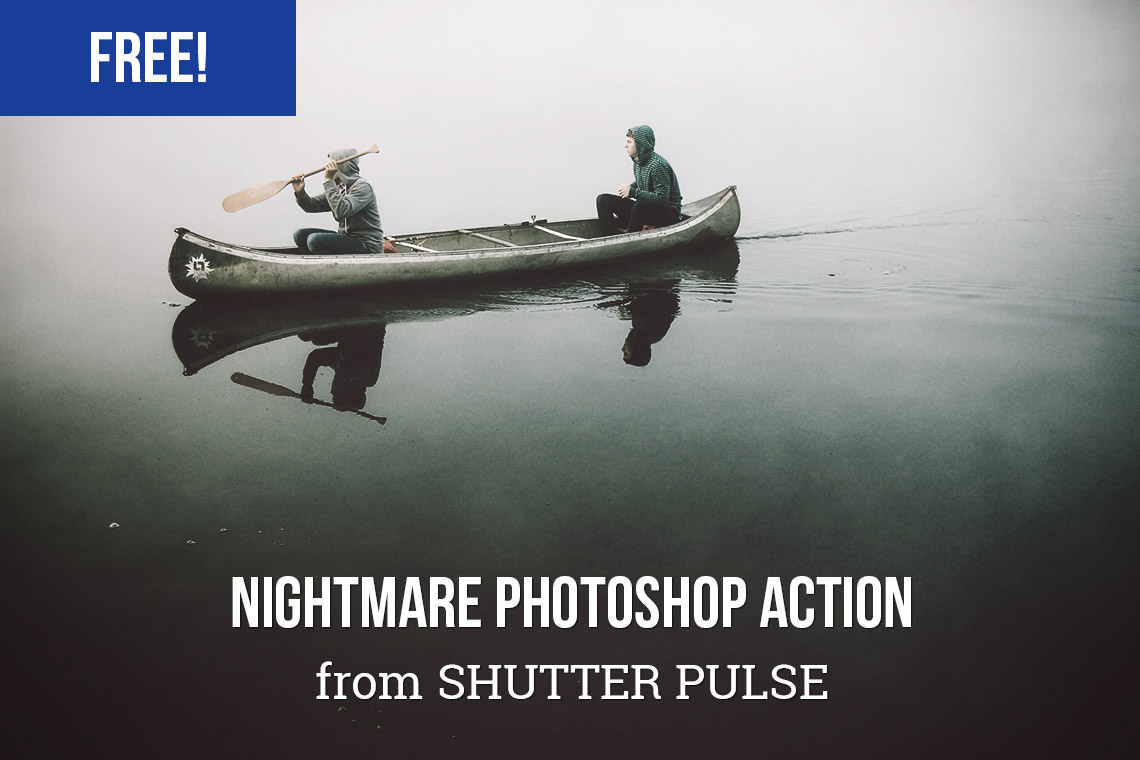
If your photos just aren't sinister enough for your liking, this free Photoshop action should make things a little more unsettling. It's designed to let you easily give your photos a dark, haunting vibe. Perfect for creating the impression that you're permanently about to stumble into mortal danger.
05. Pastel Effect
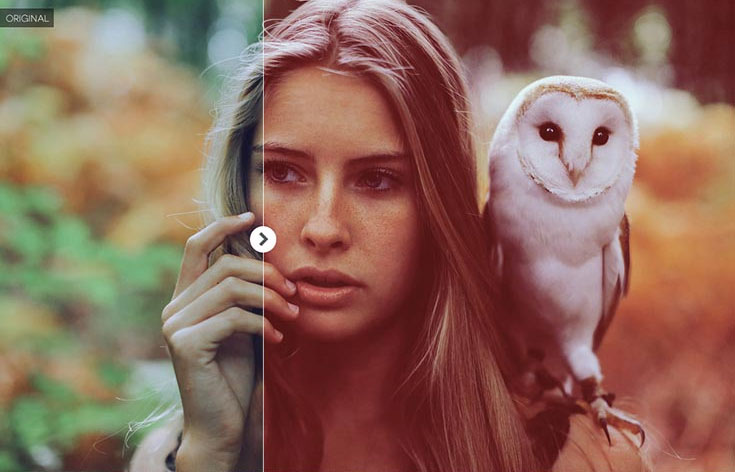
Another way to breathe fresh life into your photos is with this set of 40 pastel effect Photoshop actions; they'll provide instant light enhancement and beautiful colour toning at the touch of a button, and transform ordinary shots into something much more Instagram-worthy.
06. Mystical Light
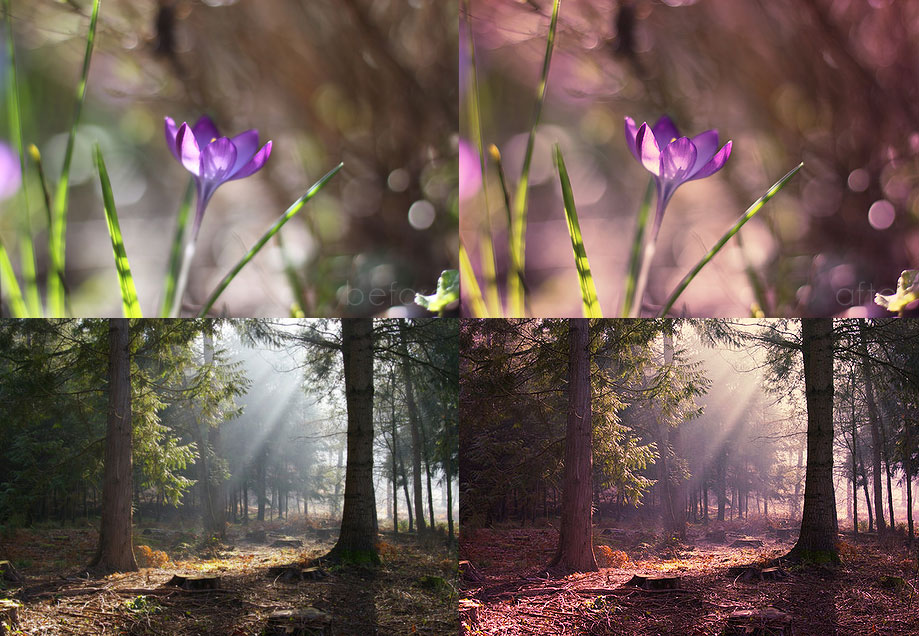
Give your photos an other-worldly air with this Photoshop action from Megan Joy, available through DeviantArt. It'll infuse landscapes with a magical light, infusing any shot with an ethereal purple haze and making the dullest of landscape shots look like a mysterious fairy dell.
07. Hazy Afternoon
Perfect for outdoor pictures, the Hazy Afternoon action certainly lives up to its name by creating a soft gradient colour layer. You can use this free action on black and white or colour images, plus you can easily adjust the gradient until you get the exact look you're after.
08. Bella
This action adds a beautiful warmth to your photographs, bringing out rich tones in hair and skin, and softening colours with a pink cast. Give your images a romantic, nostalgic feel in an instant.
Free Photoshop actions: Vintage photo filters
09. Creamy vintage

Shutter Pulse's free Photoshop action allows you to instantly add a vintage feel to your pictures. Creamy Vintage lightens your photos with soft tones that create a charming retro feel. It's a great way to add a subtle hint of character to your images without making them feel overly filtered and over-processed.
10. Ultra Faded

Want to make your professionally captured photos look like they were taken with a cheap camera? Of course you do. This set of free Photoshop actions from SparkleStock recreate a faded film effect, with optional light leaks. The full (paid) set includes a whole load of different options, but you can download 11 for free. All actions are created using adjustment layers, so they'll all remain fully editable and nondestructive.
11. 2-strip Technicolor
Recreate the look of 2-strip Technicolor film by downloading this free action. Popular in the 20s and 30s, 2-strip technicolor film exposed black and white film behind a green filter and a red filter. By merging the green and blue channels in different layers, this action simulates the 2-strip look without damaging the original image.
12. Polanoid Generator 3
Turn any image into a Polaroid instantly with one of 10 different effects. It includes colour treatments and shadows automatically, and it's one of those Photoshop actions you'll use again and again.
13. The Mini Collection

Featuring some impressive retro Photoshop actions, plus a kit of light leaks and some vintage Photoshop brushes, the Mini Collection from FilterGrade is a free taster of its larger $49 FilterGrade bundle.
14. Set14
If you're after a vintage effect for your photography but you're not entirely sure what, nab this free Photoshop actions collection from DeviantArt user Yeonseb. It contains 14 assorted vintage actions, so you're bound to find something to your liking.
Free Photoshop actions: Monochrome photo filters
15. Bold B&W HDR
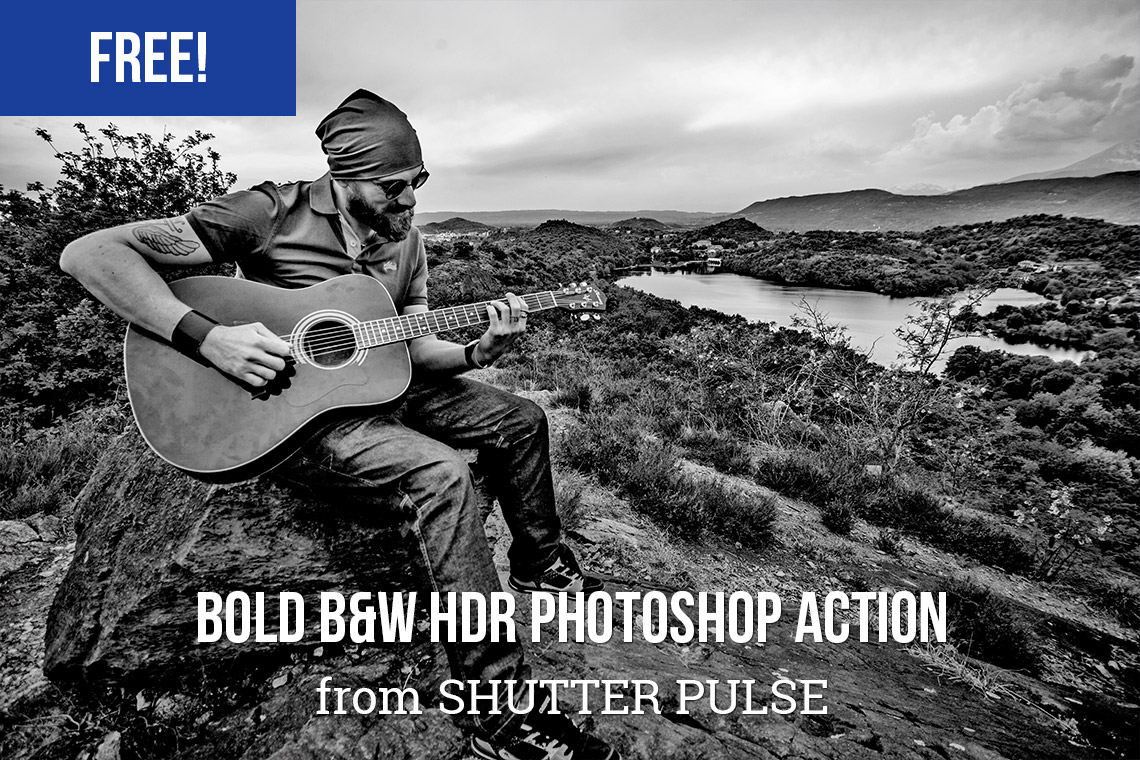
It's not just colour photos that you can apply the HDR treatment to. With this free Photoshop action you can give any photo a bold, black and white, HDR-style look that'll make it really stand out.
16. Infrared Photography
Add the eerie touch of a cool infrared chill to your pictures with this free Photoshop actions entry. This action creates two adjustment layers inside a layer group, allowing you to change the red and blue balance, as well as the contrast.
17. High Key
This action requires a credit if you use it, but offers a very simple way to convert a regular photograph into a stunning high-key portrait with clean lines and an almost dreamy finish, without compromising essential areas of contrast.
18. Lithprint
Create a lithograph-style image from your raw photos. This works best on larger images that have already been given a medium-contrast treatment. Download this Photoshop action for free on DeviantArt.
19. Old and Dirty

For Photoshop and Lightroom, this action will give you a 'black and white conversion with a slight twist'. Apply the action and voila! You'll get a vintage/retro feel on your photo.
Free Photoshop actions: Touch-up techniques
20. Reduce Motion Blur
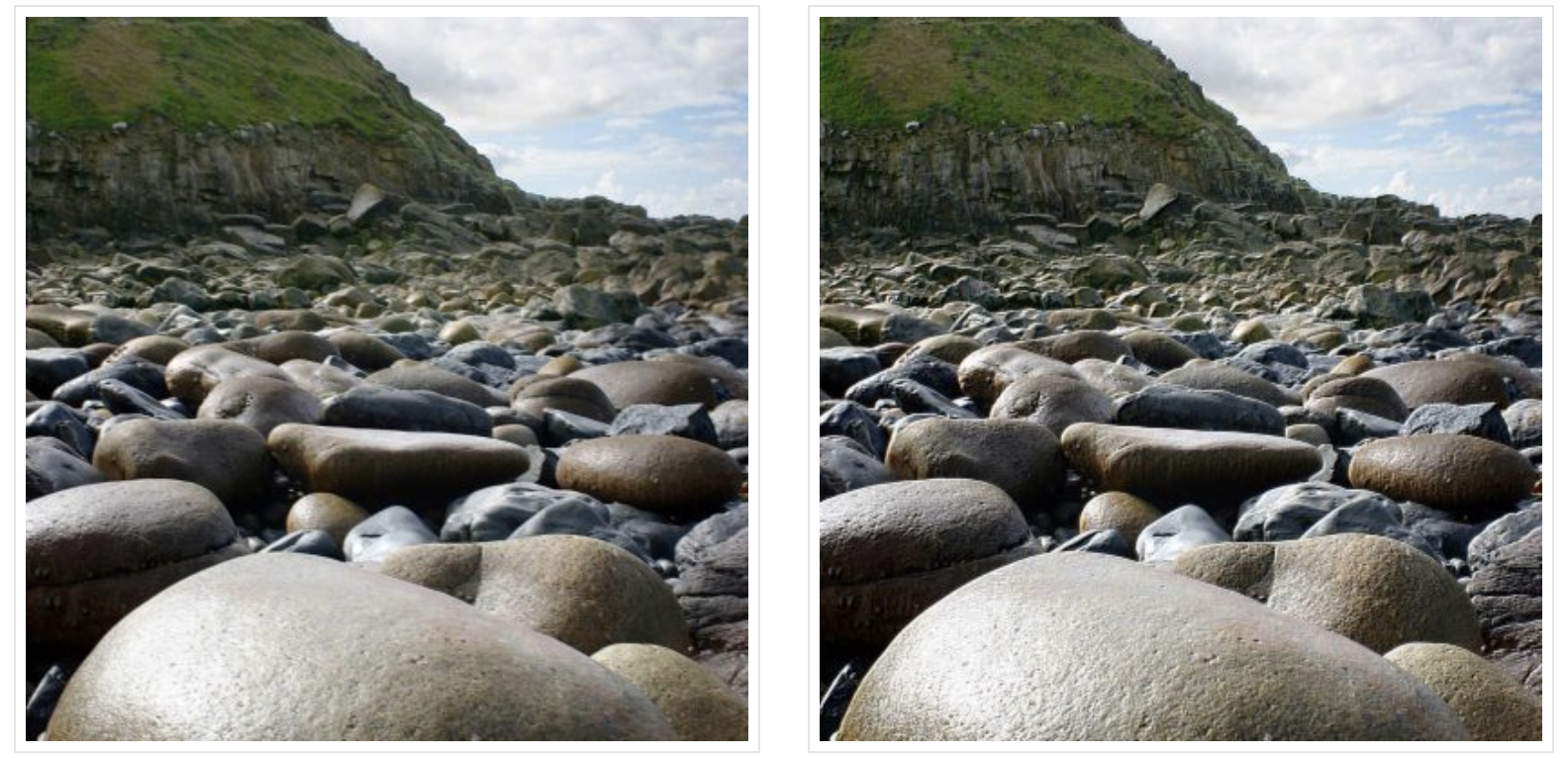
Sometimes a little camera shake, or an unexpected movement from your subject, can ruin an otherwise great photo. Save the day with this entry from the free Photoshop actions roundup. It will remove motion blur from your images.
21. Sharpen

Sharpening your images can instantly make them clearer, and this collection of free sharpen actions makes it easier than ever to make your most important snaps shine. Details become more visible by adjusting contrast and clarity, enhancing the colour scheme and lighting in your pictures. Portraits, landscapes, wedding photos and more can be brought to life with this free tool and it's perfect for both outdoor and studio photography.
22. 5 Skin Retouching actions

Want to retouch skin like a boss? This set of retouching actions will give you a head-start, enabling you to heal, mattify and airbrush skin with one click. You can also use them to brighten eyes and increase their contrast.
23. Soft Skin Tones
Used in combination with an existing selection or mask, this smoothes skin while retaining textures and colouring, saving clean-up time. It's available to download for free.
24. Remove White Background
Automatically remove white backgrounds with this suite of three actions that allow for different automated processes to strip out the background of your isolated images.
Free Photoshop actions: Special effects
25. BlackNull's Modern Artist Action Set

This is a complex free Photoshop action created for Adobe Create by the artist Nuwan Panditha, also known as BlackNull. It can be used to turn photographs into vibrant works of graphic art. You'll need to follow the instructions carefully for this one, creating a clear mask layer (be sure to name it 'mask') for your subject. The action may look great immediately when applied, but have a play around because there are lots of way to change the shapes and colours.
26. Powder Explosion free photoshop action

Powder is a common prop in dance photography, but you don't necessarily need to mess up your studio to get that exploding look. This free Photoshop action attempts to replicate the effect.
Don't expect too much – it's never going to replicate the realism of actually shooting with powder, but can be a fun action to add some exaggerated drama to an image. You'll need to credit Diego Sanchez, the creator of the action, if you use it for free.
27. Dispersion Effect

This free Photoshop action enables you to easily create dispersion effects in your images, to make it appear like an object is exploding or disintegrating. The action leaves layers intact so you can easily modify and edit the results to your liking.
The only downside is that you can only use it with 72 dpi images in RGB color mode.
28. Free Photoshop Watercolors Action
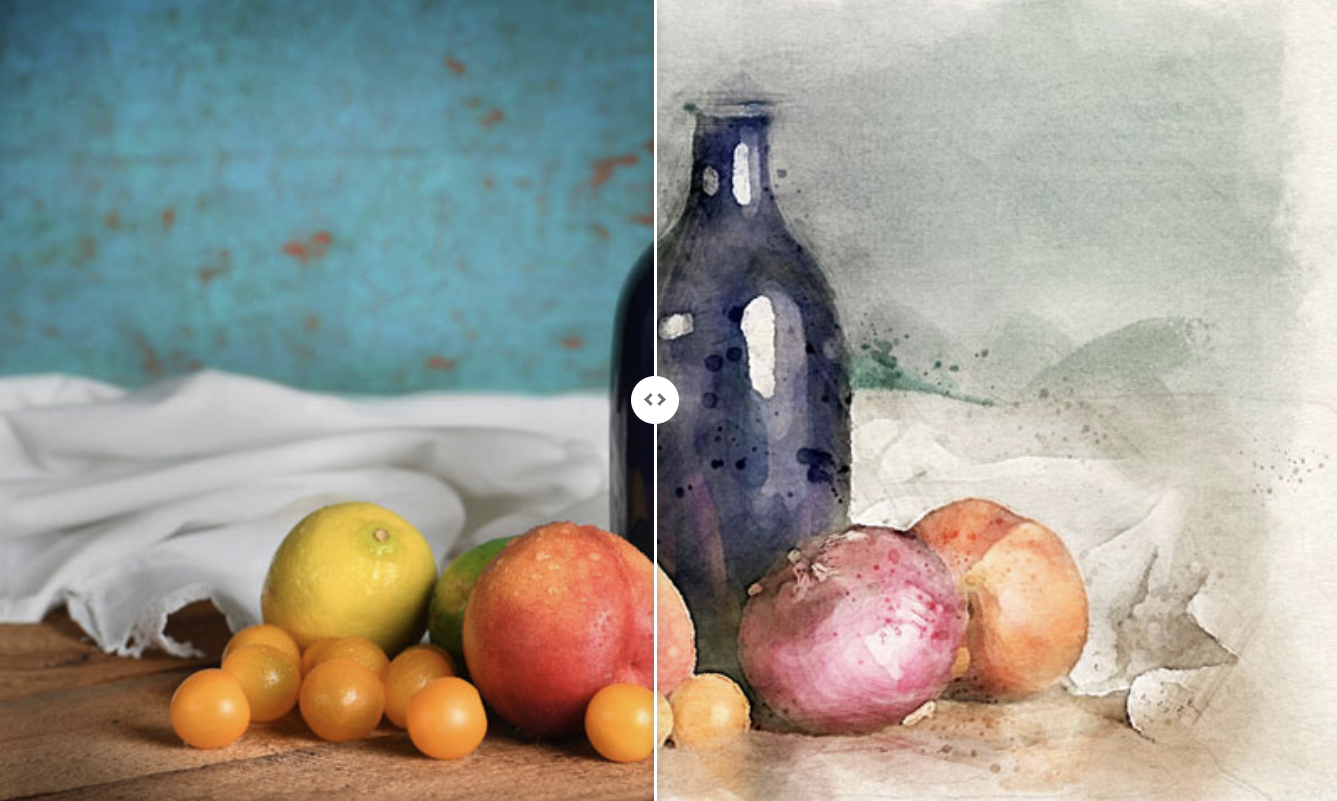
There's been a bit of a trend of making photos look like traditional art, but you don't have to resort to generative AI to get that kind of look. You can make digital photographs look like traditional watercolour paintings using this free Photoshop action created by Nuwan Panditha (AKA BlackNull).
Designed for Adobe itself, the action comes with a guide on how to use it, and it's easy to adjust. You might want to balance the brightness of the image, and the action works best on an image with width and height parameters between 2,000 and 5,000 pixels and a balance of shadows, midtones and highlights.
Photoshop actions FAQs
What are Photoshop actions?
Photoshop actions are essentially recordings of sequences of tasks or edits performed in the software. Recording these sequences, from menu commands to panel options and tool actions, allows you to apply the same sequence of changes to other images automatically, avoiding the need to manually work through each step.
Although you will usually want to fine-tune the results, automating the basic process can save a lot of time if your workflow often involves applying the same sequences of changes time and time again.
For example, if you have a preferred method of retouching skin in a photo, you can record this as an action. Complete it with a black mask. That way you can run the action on any image, select a soft white brush and simple paint on effect, adjusting the opacity as needed.
You can export your actions to share them with other users, and you can download other people's actions to add them to your own resources. You can also assign shortcut keys to actions to make applying them even quicker.
Photoshop actions can include many steps. With classic actions, you can click on the triangle icon (>) beside each action to see a drop-down list of all the individual steps it contains in reverse order. This allows you to individually toggle on or off certain steps.
Photoshop's new inbuilt actions can be previewed before applying them. Look for the preview icon next to the action and mouse over the action name to see the preview. If you like the result, you can select to play the action. You can use the three-dot ellipses, or right-click on an action, to view additional options, such as only applying the action to the subject or background of an image.
How can I create my own Photoshop actions?
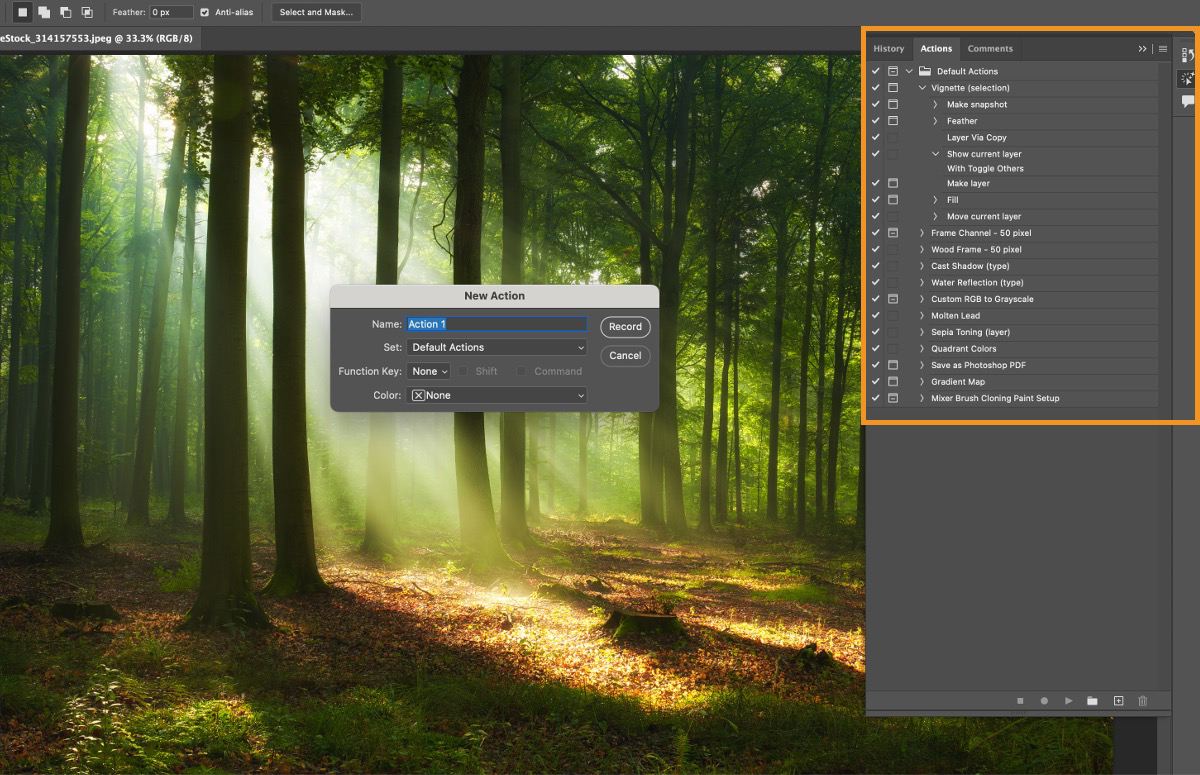
It's relatively easy to create your own Photoshop actions. This can help you to save time by semi-automating sequences of edits that you regularly apply.
Open the Actions panel (Window > Actions or Option/Alt+F7) > Classic Actions, and click the New Action button (+), create a memorable name for the action (make sure it's a name that will help you remember what the action does), and press Record (the circle icon). Perform the edits you want to make, then click the Stop button in the panel to finish.
To apply the recorded edits to other images, go to the Action panel, select your action by name and hit the Play button.
You can also assign a shortcut key to an action, letting you activate the sequence of edits with just the press of a button instead of having to find the action by name. With the desired action selected, click on the menu icon in the top right of the actions panel and select Action Options and then choose a function key from the dropdown menu. You can optionally check the box for 'Shift' or 'Command/Ctrl' to create a combination, such as 'Shift+F7'.
How do I install Photoshop actions?
Most free Photoshop actions will download as zip folders. You'll want to extract the contents, which should take the form of an .ATN file, to an easy-to-find location on your computer.
To install the Photoshop actions and make them available to use in Photoshop, you'll need to open the Actions panel in Photoshop (Window > Actions or Option/Alt+F7). Click on the Menu Icon at the top right of the Actions panel, scroll down to Load Actions and open the Photoshop Actions Folder. Navigate to the folder where you saved the Photoshop action and double-click the .ATN file. Once the action you want appears listed, you can simply click the Play button to apply it to your current project.
Can I share or sell Photoshop actions?
Yes, you can share your Photoshop actions to allow other people to use them. Many artists and other creative share free Photoshop actions like those above to help others and build their own communities, while others turn Photoshop actions into an additional source of revenue by selling them online.
In either case, save your Photoshop action as an .atn file (click on the Menu in the top right corner of the Actions panel and choose 'Save Action'. Find the file on your computers, and it's ready to be sent via email, a file sharing service or cloud storage. Recipients can import it by double-clicking the .atn file or using 'Load Actions' in Photoshop itself (see above).
If you're looking to update your on-the-go kit, take a look at the best laptops for Photoshop. For the latest news from the home of Photoshop, check out why Adobe is frustrating web designers.