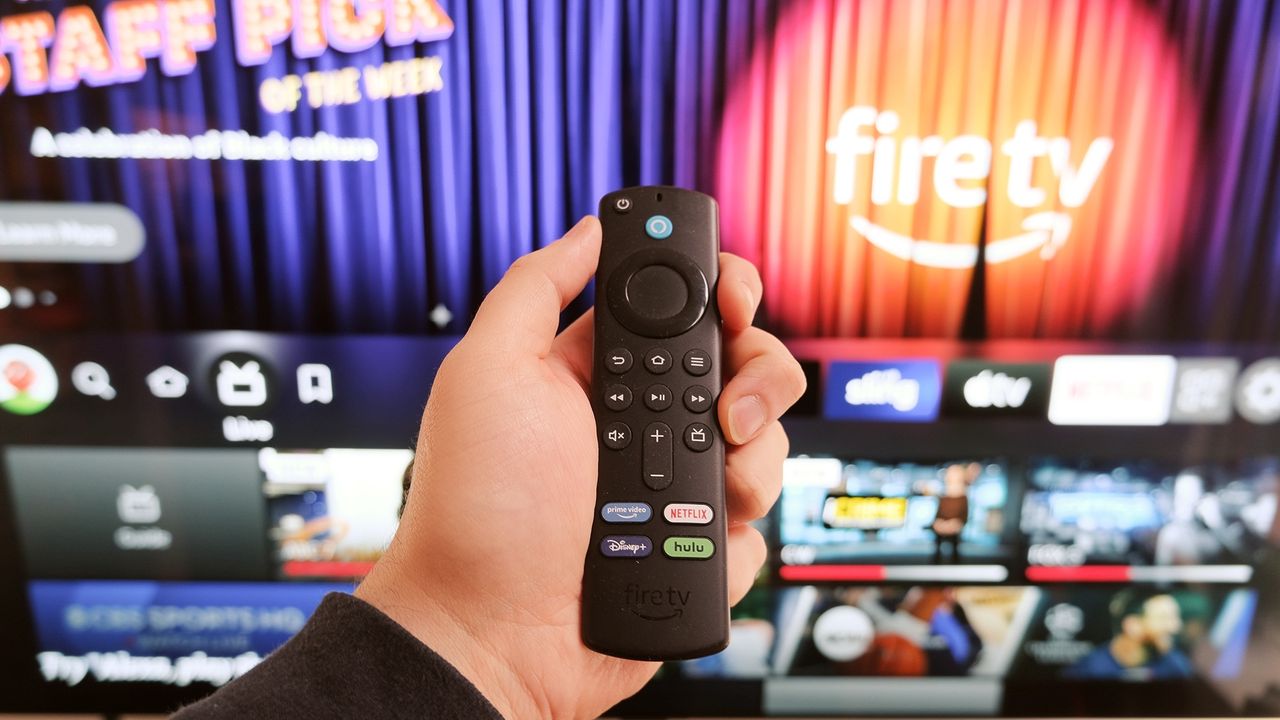
Lately, you may have noticed your Fire TV Stick taking a beat longer to respond, or that the Netflix scrubber lags where it didn't before. Apps hesitate to load where you remember them being snappy. None of that is your imagination, and it isn't the stick aging out, either — both the Apple TV 4K and the Fire TV Stick 4K Max are still among the best streaming devices you can put behind a television.
What's changed, mostly this spring, is what the major streaming services are putting on top of that hardware. Netflix, Disney+ and others have stepped away from native platform players, and instead. have started to ship custom video engines with their streaming sticks.
Those engines are slower, less responsive and bypass the operating system features Apple and Amazon spent years building. The stick itself isn't dragging — the apps are dragging the stick.
Why your streaming stick feels slower
The smoking gun was Netflix's April rollout of a custom video player on Apple TV this year.
The smoking gun was Netflix's April rollout of a custom video player on Apple TV this year, which dropped the native tvOS AVPlayer it had used for years. FlatpanelsHD broke it down first, and the rest of the Apple press piled on within a couple of weeks.
In practice, the first thing you're likely to notice is a lack of responsiveness. The Siri Remote's touch surface, which on every other app gives you smooth scrubbing, has been demoted to budget-smart-TV behavior. A single back-press no longer skips ten seconds — it pauses, brings up a frame selector and waits for a second click. That extra beat, multiplied across every instance, is the new normal for many people when browsing Netflix.
In addition, several useful tvOS features stopped working simultaneously. Automatic Subtitles, the one that turns on captions when you mute or skip back, doesn't fire inside Netflix anymore, and Enhance Dialogue, which pulls speech forward over score and effects, isn't available.
The slide-up info overlay that showed Dolby Vision, Atmos and exact playback resolution has been replaced with Netflix's own UI, which isn’t much use for most people. Even the iPhone Remote app has stopped talking to it properly.
Want to learn more?
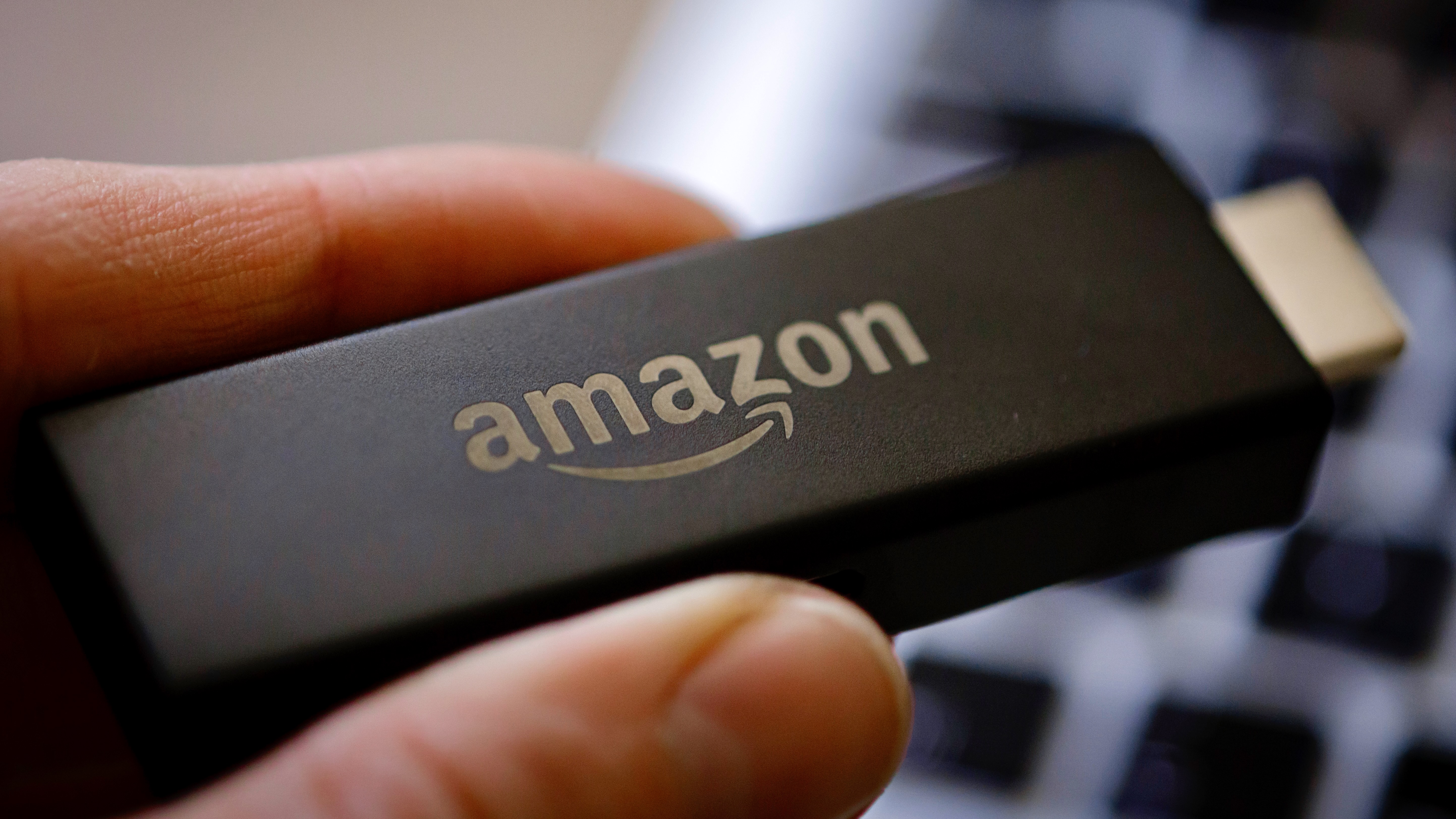
Here are 7 important Fire TV Stick features to enable right now.
Netflix is the worst offender, though it isn't alone. Disney+ has been running a custom player on Apple TV for some time, which is part of why a few system-level features don't behave there either. Netflix's separate refusal to integrate with the Apple TV app's universal "Up Next" row is unchanged from earlier years — your watchlist looks half-empty because Netflix has chosen not to feed it.
The motive is, in part, cost. Writing fully native apps across tvOS (Swift), Fire OS (an Android fork), Roku (BrightScript), Samsung's Tizen and LG's webOS is genuinely expensive at the scale that streamers operate, and a single custom video engine deployed across all of them saves money.
Owning the player layer also keeps the telemetry within the streamer's walls rather than handing it to Apple or Amazon, which matters more than it used to, as ad-supported tiers drive most subscriber growth across every major service. Losing tvOS features must be, from their perspective, an acceptable cost.
Fixes that actually help
1. Turn on Match Content on Apple TV.
Settings > Video and Audio > Match Content > enable Match Dynamic Range and Match Frame Rate
The reason a lot of content judders for no obvious reason is that 24fps film material is being output at 60Hz unless the box is told to switch — and it isn't by default. Match Content is a global setting, but its success works on an app-by-app basis rather than system-wide.
Thankfully, most major services (including Netflix and Prime Video) support it, and the difference is visible immediately in cinematic content. You'll see a brief blank screen at the moment of switching, which is a long-standing HDMI handshake quirk and not a bug. (There are also several other Apple TV settings worth changing at the same time.)
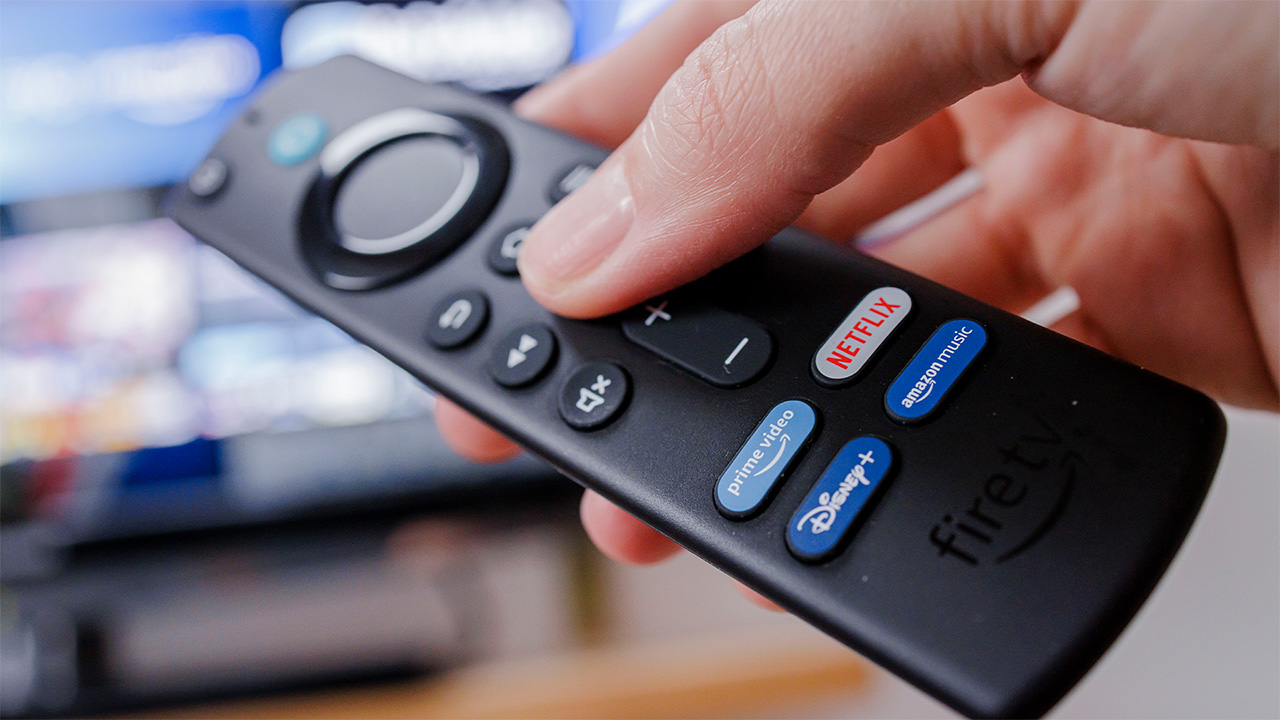
2. You can make similar adjustments on Fire TV.
Display & Sounds > Display > Match Original Frame Rate
This is similarly off by default but worth turning on. Make sure Video Resolution in the same menu is set to Auto — without that, Match Frame Rate has nothing to work with.
3. Set a custom subtitle style at the system level on Apple TV.
Settings > Accessibility > Subtitles and Captioning > Style
Build a custom style rather than leaving it on Default, and Apple's frameworks will push your preferences down into most third-party apps (Apple TV+, Prime Video and the standard catalogue).
Netflix and Disney+ will keep ignoring you, since their custom players don't respect system-wide accessibility settings. That part is on them.
4. Kill Featured Content autoplay on Fire TV.
Settings > Preferences > Featured Content > disable Allow Video Autoplay and Allow Audio Autoplay
The home-screen previews load in the background as you browse, competing with whatever you're trying to watch for bandwidth. Switching them off is the single biggest responsiveness change you can make on the 4K Max — menus move faster, apps open faster and the whole experience should feel less burdened. (If you want to go further, there are several other Fire TV features worth enabling in Settings.)
What you can't fix from the sofa
Some of this is simply outside of your reach. The Netflix custom player on tvOS — the lost scrubbing, the missing Enhance Dialogue, the broken Automatic Subtitles, the disappeared info overlay, the dead Remote app — none of that can be brought back via a settings menu. They're choices Netflix made in the app and only Netflix can unmake them.
Atmos drops are similar. Apple labels Audio Format's Auto setting "recommended" for a reason, and the manual format options exist as fallbacks for incompatible equipment rather than fixes for app-side problems. If a specific app is downmixing to stereo while Auto is set correctly and the rest of your hardware chain is fine, the bottleneck is the app's handshake — and there isn't yet a switch you can flip to repair it.
The watchlist gap is the cleanest example. No amount of fiddling will get Netflix titles into Apple TV's "Up Next" row, because Netflix has chosen not to expose that data to the API. It looks like a technical limitation, but it's actually just policy.
But if you're tempted to throw $130 at a new streaming box assuming the next one will feel like the demos, I’d hold off. A refreshed, new Apple TV 4K is reportedly due later this year, and the constraints you're hitting aren't in the silicon anyway.
We think that the Apple TV 4K and Fire TV Stick 4K Max are still the right boxes to own, despite the fact that their ecosystem seems increasingly inhospitable.