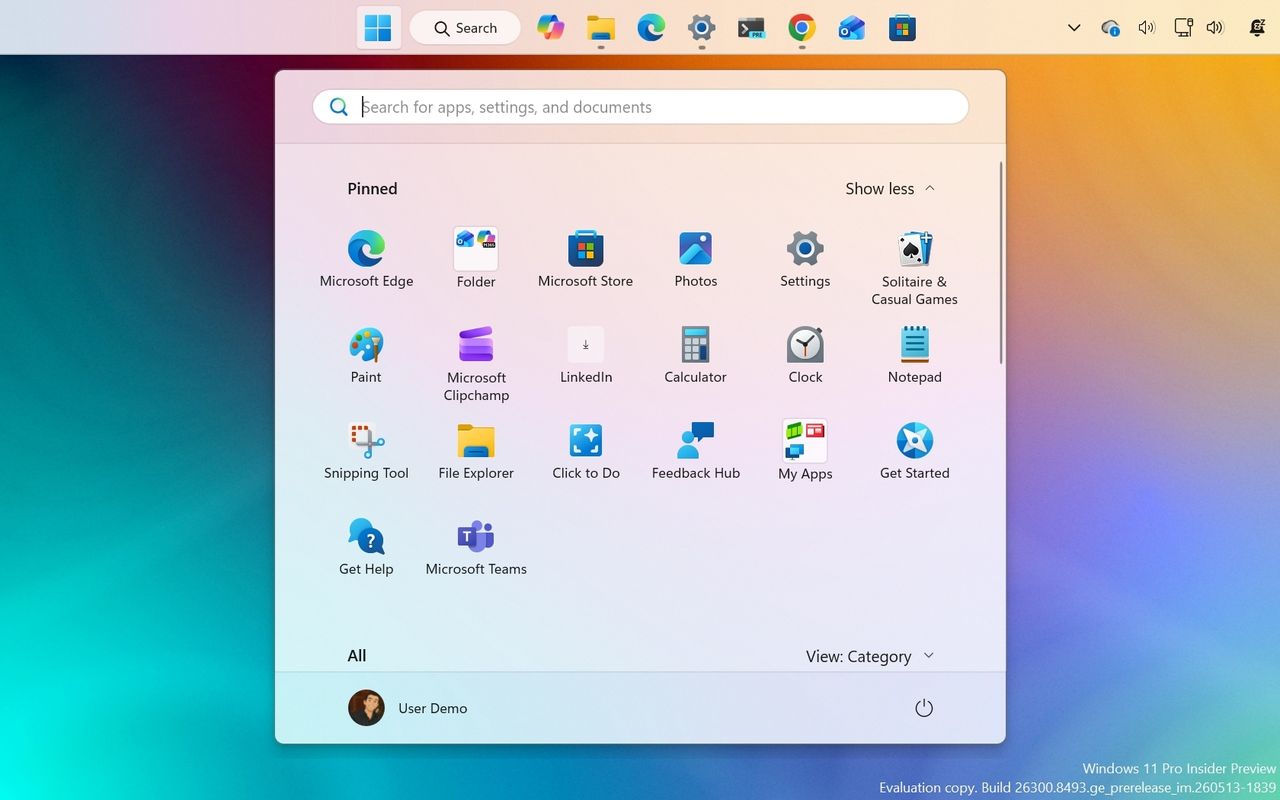
As part of the Windows Insider Program, Microsoft released several preview builds of Windows 11 in early May 2026. Although these releases didn't introduce many new experiences, the company dedicated most of the work to improving existing features.
In the first half of May, the software giant rolled out a new version of the Run dialog with a modern design, File Explorer has received several improvements, the Widgets experience introduced new defaults to reduce distractions, and brought back the ability to relocate the Taskbar anywhere on the screen.
In addition, there are new touchpad gesture controls, an updated version of the Task Manager, and Microsoft now provides free upgrades from Windows 11 Home to Pro Education at no extra cost for organizations.
In the Experimental track, we've seen builds 26300.8493, 28020.2134, 29591, 28020.2075, 29585, 26300.8376, 28020.1921, 29580, and 26300.8346, and builds 26220.8270 and 26220.8283 have been released in the Beta Channel, which is still in the legacy channel.
Also, the company released build 26300.8276 in the Dev Channel, build 26220.8271 in the Beta Channel, and builds 28020.1863 and 29570 in the Canary Channel.
In this recap, I'll highlight the latest and most interesting changes available through the Windows Insider Program.
Biggest improvements from the Windows Insider Program in May 2026
These are the most significant changes Microsoft has unveiled since the last roundup.
1. Taskbar position settings
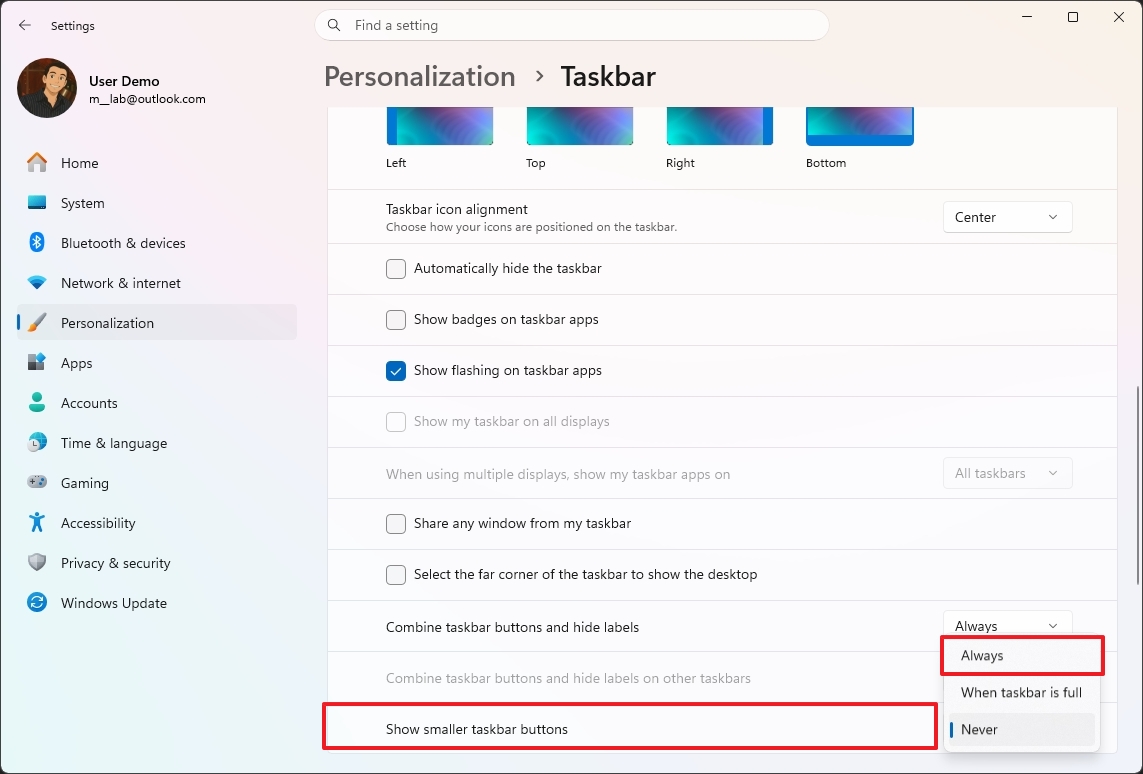
Microsoft is bringing back the ability to change the location of the Taskbar with the release of build 26300.8493 in the Experimental channel.
This change allows users to place the Taskbar at the top of the screen, as well as at the left or right edges of the screen, rather than being limited to the bottom.
The setting appears on Settings > Personalization > Taskbar, under the "Taskbar behaviors" section. The setting is called "Taskbar position."
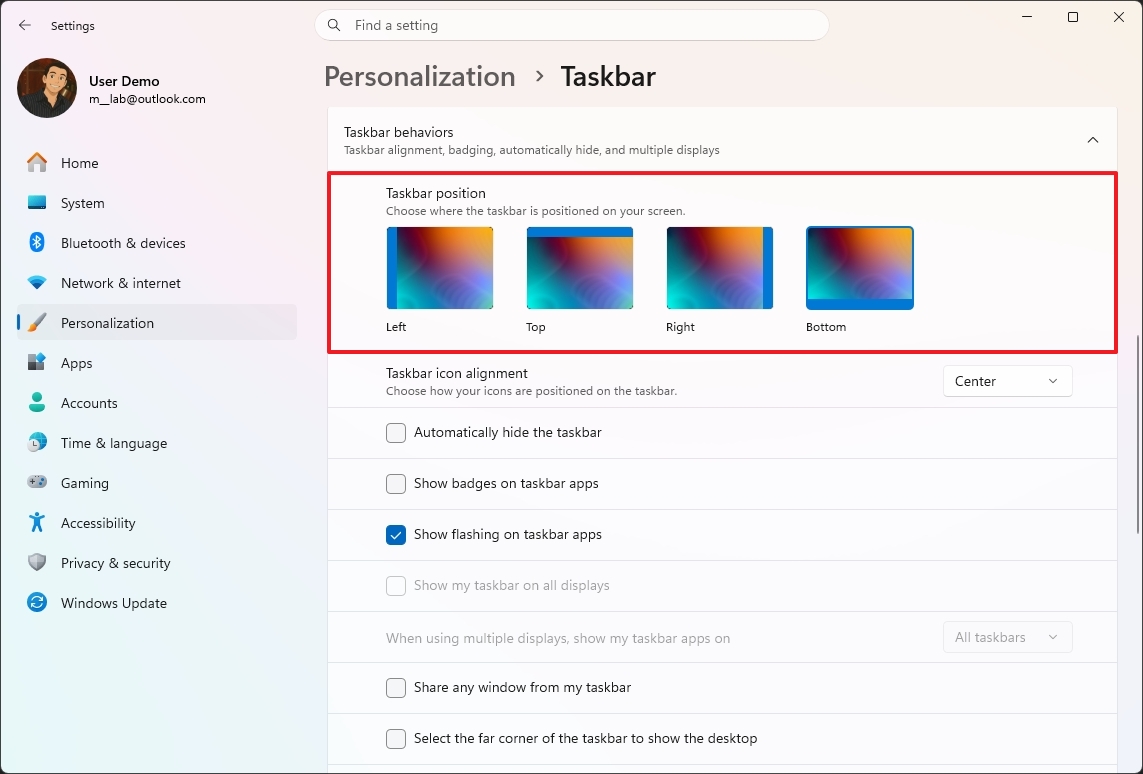
One interesting fact about this new setting is that each position option displays a live view of the current desktop wallpaper.
The company notes that flyouts, tooltips, and animations will follow the Taskbar orientation regardless of the position.
Also, most existing features will continue to work, including the option to ungroup and show labels for apps.
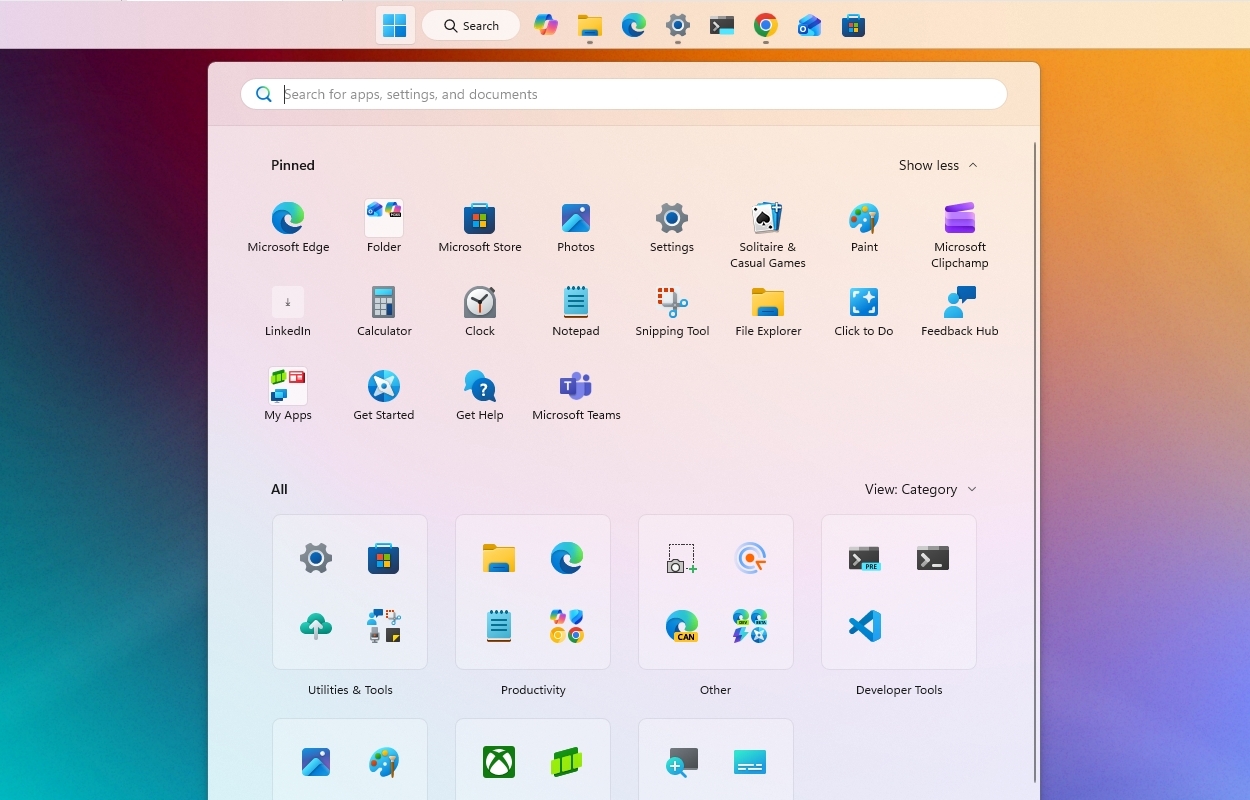
However, this feature is still a work in progress, so not everything is working as expected. For example, touch gestures and the search box are not working correctly. In addition, auto-hide and touch-optimized capabilities are not supported.
Furthermore, the company is updating the "Show smaller taskbar button" option to make the Taskbar smaller instead of just the buttons.
2. Modern Run dialog
Starting with build 26300.8346, Windows 11 introduces a new design for the Run dialog.
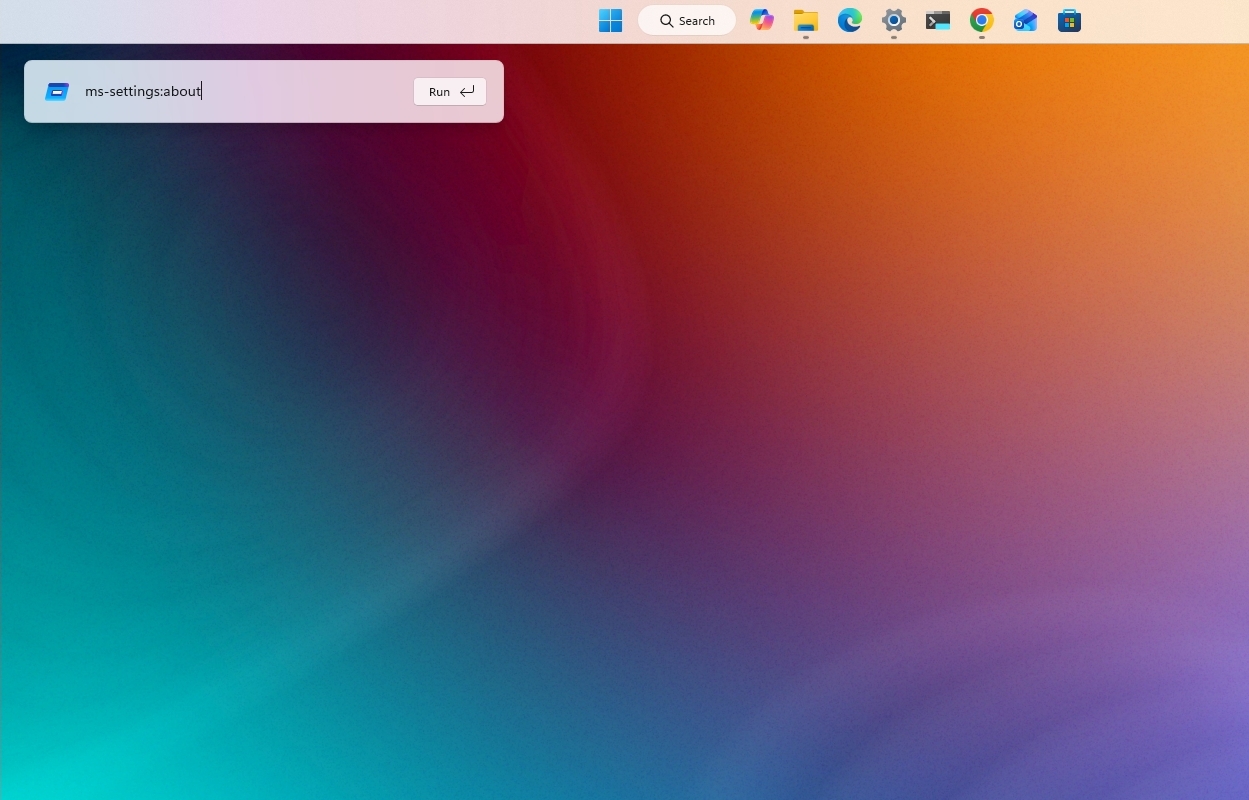
Unlike the legacy design, the Run dialog now features a modern design that better aligns with Windows 11 visuals. For example, the design offers virtually the same capabilities as the legacy version, plus a new interface using semi-transparent and blurred elements, rounded corners, and support for the light and dark color modes.
The interface is small but longer than the older design, and it's interesting enough. It only appears in the bottom-left corner of the screen, and you can't drag it around the desktop as you can in the legacy version.
Also, at least initially, launching the Run dialog Task Manager not only launches the legacy Run, but also the version that doesn't support the dark color mode.
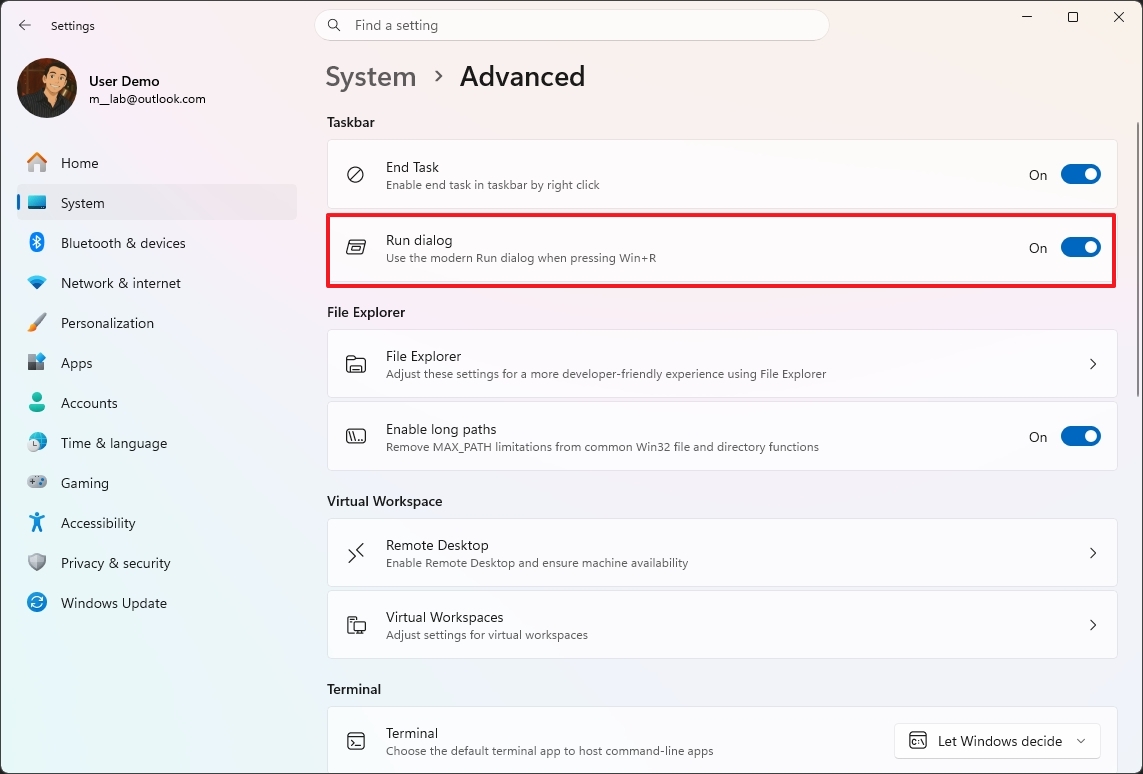
One thing to note is that Microsoft won't be replacing the legacy version of the Run command. Instead, you'll have to enable it manually from the "Advanced" settings page.
3. Share interface with suggestions
Microsoft has been working on improving the Windows Share interface to include app suggestions for Azure Active Directory users.
Previously, suggestions were limited to users with a Microsoft account, but now, it's expanding to allow AAD users to discover and install apps without the Microsoft Store.
If the suggestions aren't for you, it's possible to disable them in Settings > System > Nearby Sharing.
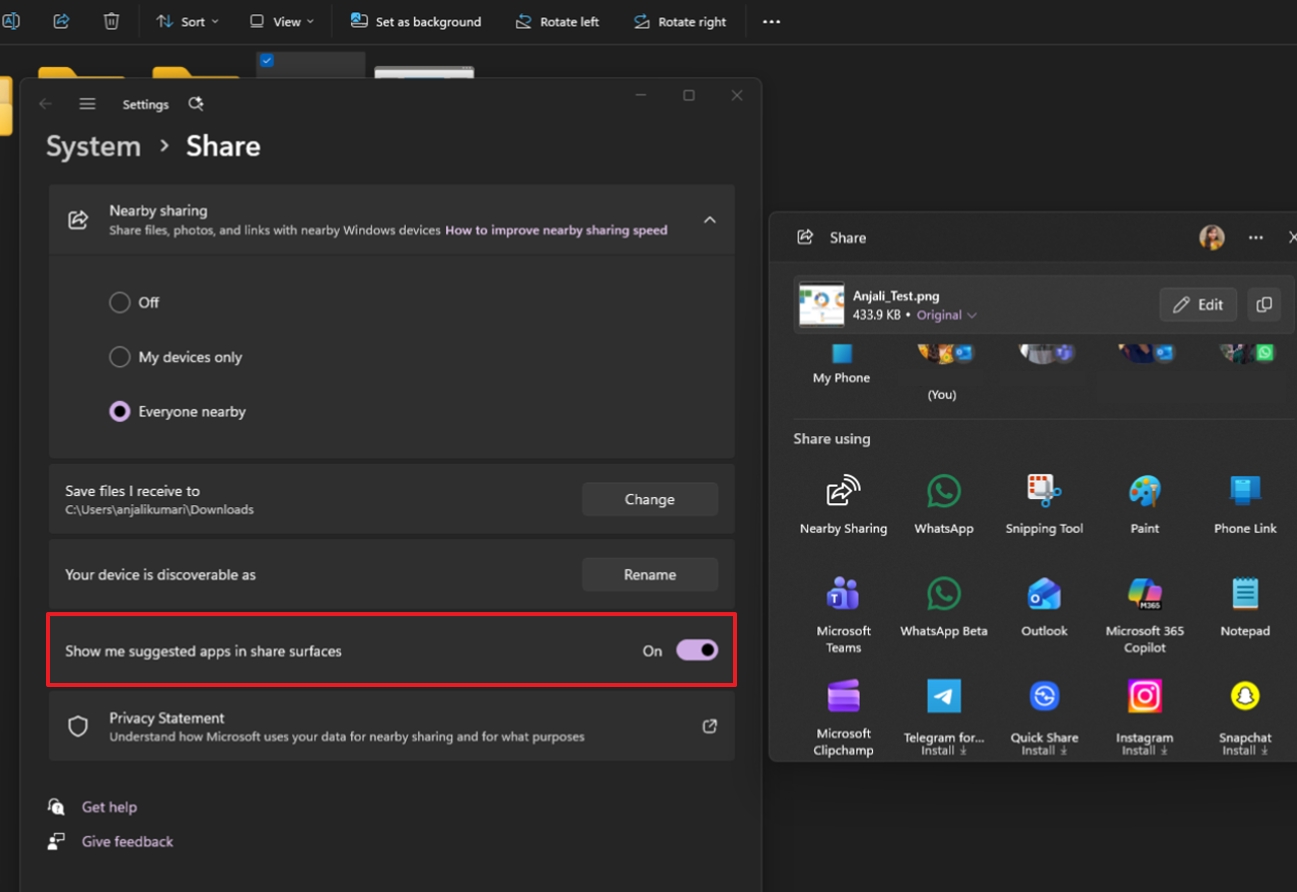
This improvement first became available on build 26300.8346.
4. File Explorer improvements
In addition, over the first two weeks of May, the software giant has rolled out several improvements that, when combined, represent a significant set of changes.
For example, Microsoft has fixed grey flash on load and unexpected scrolling in the Home page.
Also, on the same page, there has been work in the "Favorites" section and with thumbnails in the "Recommended" section.
Furthermore, the address bar improves support for paths with double backslashes and quotation marks, and the suggestion flyout in the address bar should also close more reliably after selecting an item.
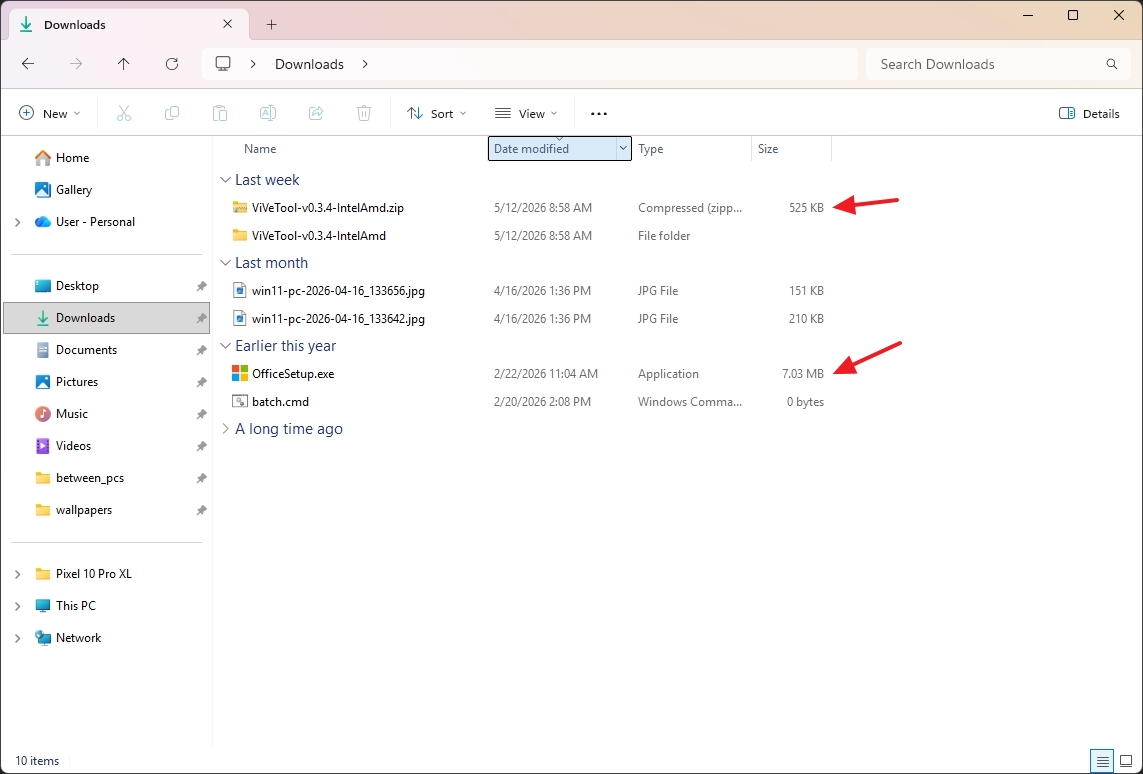
If you use the "Details" view, File Explorer will be more efficient, showing file sizes, meaning that you will now see KB, MB, and GB, instead of only KB, depending on the size of the file.
5. Widgets changes
Microsoft is also changing the default settings of the Widgets experience to make it less distracting.
For instance, starting with build 26300.8346, Widgets no longer open in hover and turn off badges in the Taskbar by default. In addition, alerts will be limited until you open the app and engage with the experience.
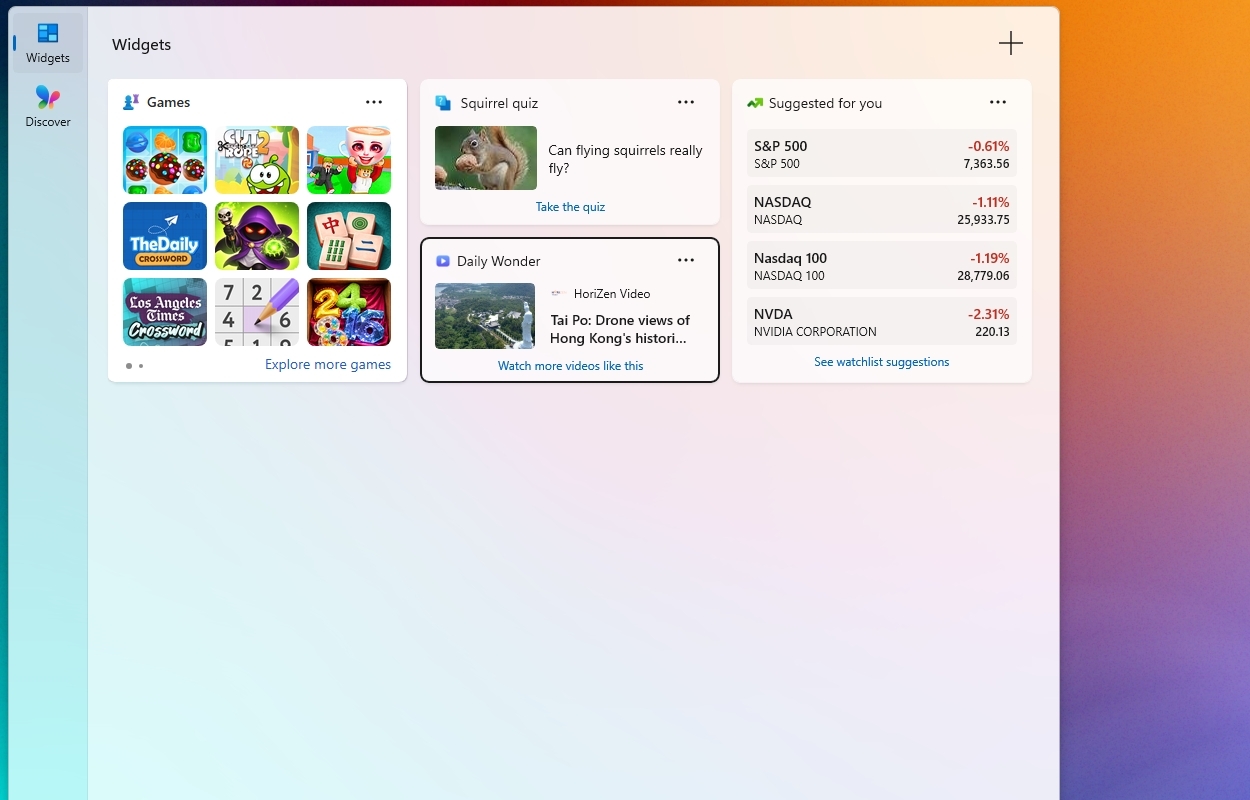
When opening the dashboard, Widgets will open on your "widgets," not in the news feed.
In addition, on Windows 11 build 26300.8493, the company is updating the Taskbar badging with a color scheme that follows the system accent color rather than the red indicator to reduce the sense of urgency.
Another change being developed is adaptive behavior for user engagement. This means that the system will now adapt the Widgets feature based on user interaction. For example, highly engaged users will continue to receive the current experience. On the other hand, less engaging users will notice quieter default settings, including reduced or disabled badging.
6. Windows Search box with improved results
On Windows 11, the company is also paying attention to the search experience, and starting with build 26300.8493, the search interface available from the Taskbar will now prioritize apps and files over web results.
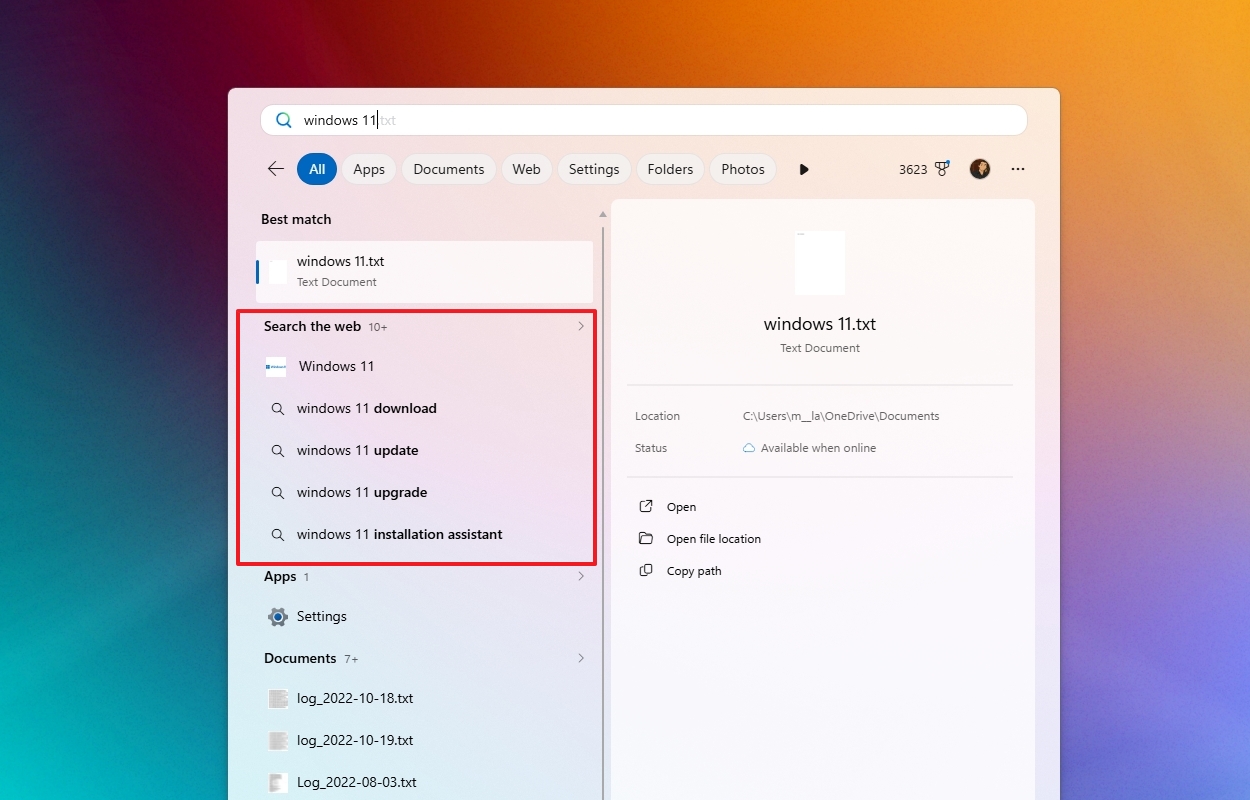
This means that web results will now appear below the results for apps and files.
In addition, Microsoft notes that it will continue to improve the search release in future updates.
7. New spinner design for core experiences
As part of the rollout of build 26300.8493 in the Experimental track for version 25H2, the development team is introducing a unified donut-style spinner animation for boot, login, restart, shutdown, and Windows Update.
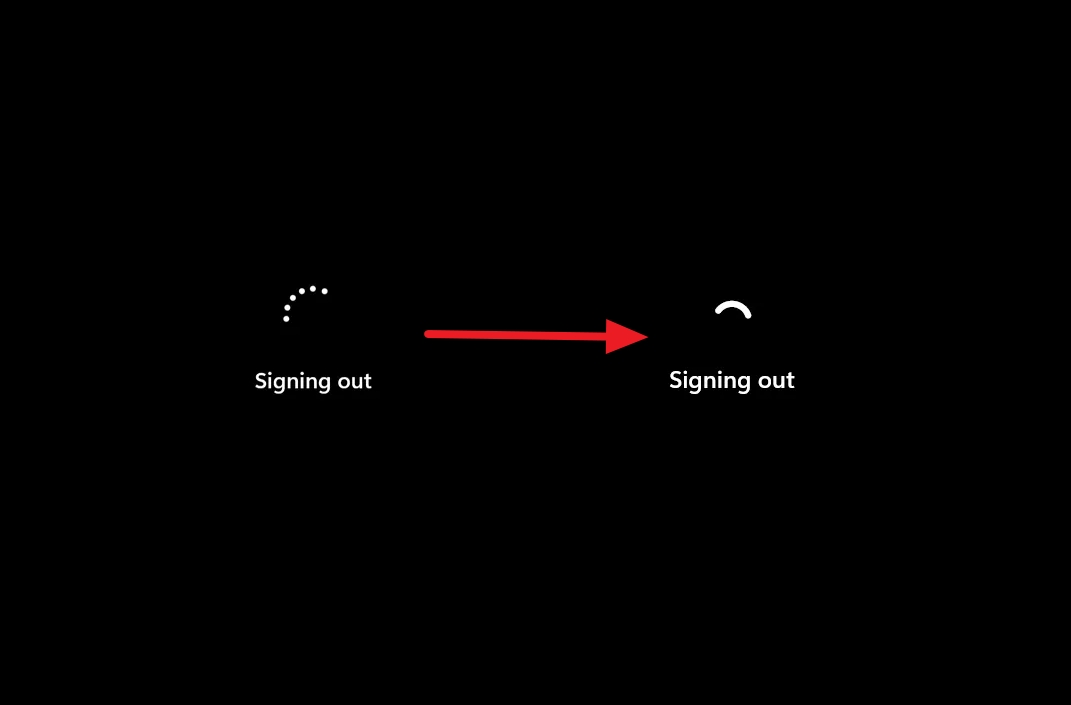
This new design replaces the legacy dots indicator with a modern and more consistent experience.
The company also notes that there are update messages, including Restarting, Working on updates, or Welcome, depending on the system state.
8. Touchpad gesture controls
Starting on build 26300.8376, the software giant has also introduced new precision touchpad gestures on the "Touchpad" settings page.
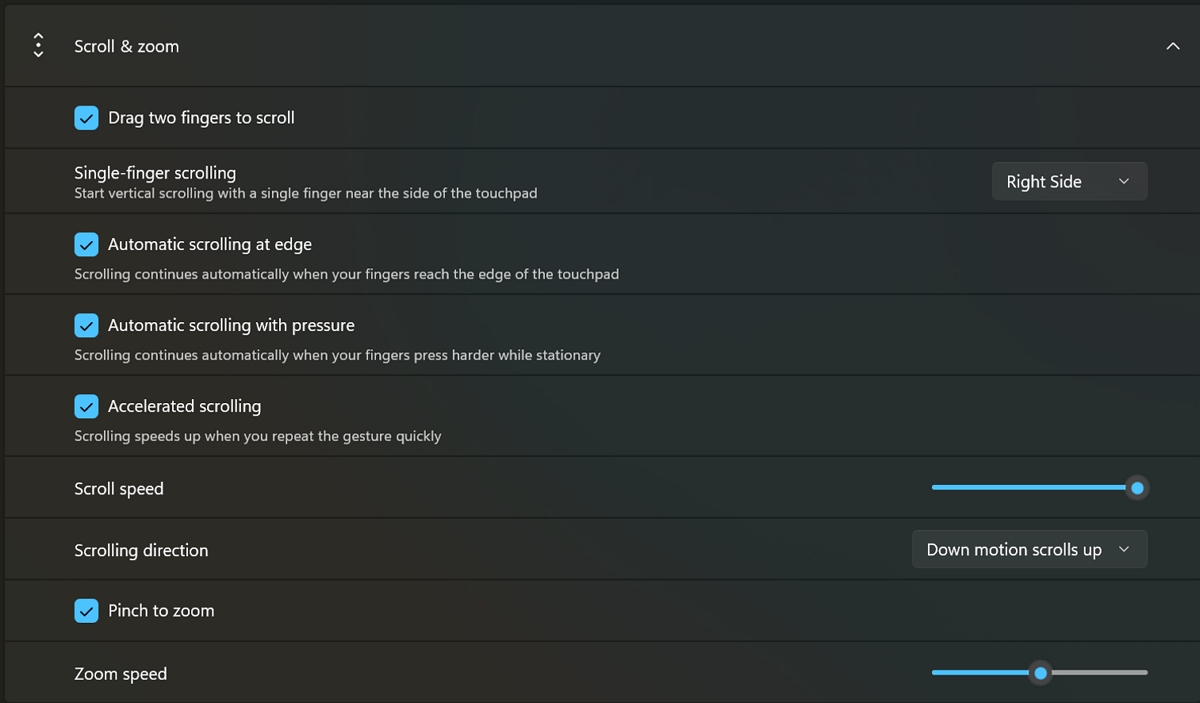
As part of the new settings, Windows 11 now includes controls for scroll and zoom speed, allowing you to adjust the sensitivity
The system now offers automatic scrolling so you can keep scrolling without lifting your fingers. The feature works by positioning your fingers close to the edge of the touchpad while scrolling or pressing more firmly while holding them still.
Furthermore, accelerated scrolling intelligently increases scrolling speed during repeated gestures, allowing you to move through long documents and webpages faster and with less effort.
Microsoft is also introducing single-finger scrolling, a feature that lets you scroll vertically by swiping along either edge of the touchpad with one finger.
9. Home to Pro Education free upgrade
The software giant is also rolling out a new upgrade path that enables eligible K-12 organizations to switch devices from Windows 11 Home to Windows 11 Pro Education at no extra cost. The initiative is intended to help schools purchase more affordable devices running the Home edition and later transition them into managed school environments.
The path was first announced with the release of build 26300.8376, and to perform the upgrade, users must first sign in using a local account and run the ClipUpgrade.exe command from an elevated Command Prompt. After signing in with an eligible K-12 organization account, the system will verify qualification, stage the upgrade, and finalize the transition following a system restart.
10. Task Manager with new NPU visibility
In the Experimental experience, build 28020.1921, you'll also find an updated version of the Task Manager that includes various improvements regarding devices using Neural Processing Units (NPUs).
First, the app now includes optional "NPU" and "NPU Engine" columns in the "Processes," "Users," and "Details" tabs.
In addition, the "Details" tab ships with "NPU Dedicated Memory" and "NPU Shared Memory" columns to improve visibility into AI workloads.
Furthermore, if the graphics card has an NPU, it'll appear in the "Performance" tab.
In the "Processes" and "Details" tabs, you'll also find a new "Isolation" column to understand when an app is running in an "AppContainer."
These new columns are available from the context menu when you right-click the header of a column in Task Manager.
11. Voice Typing on the touch keyboard
In the touch keyboard experience, the development team has updated the Voice Typing integration.
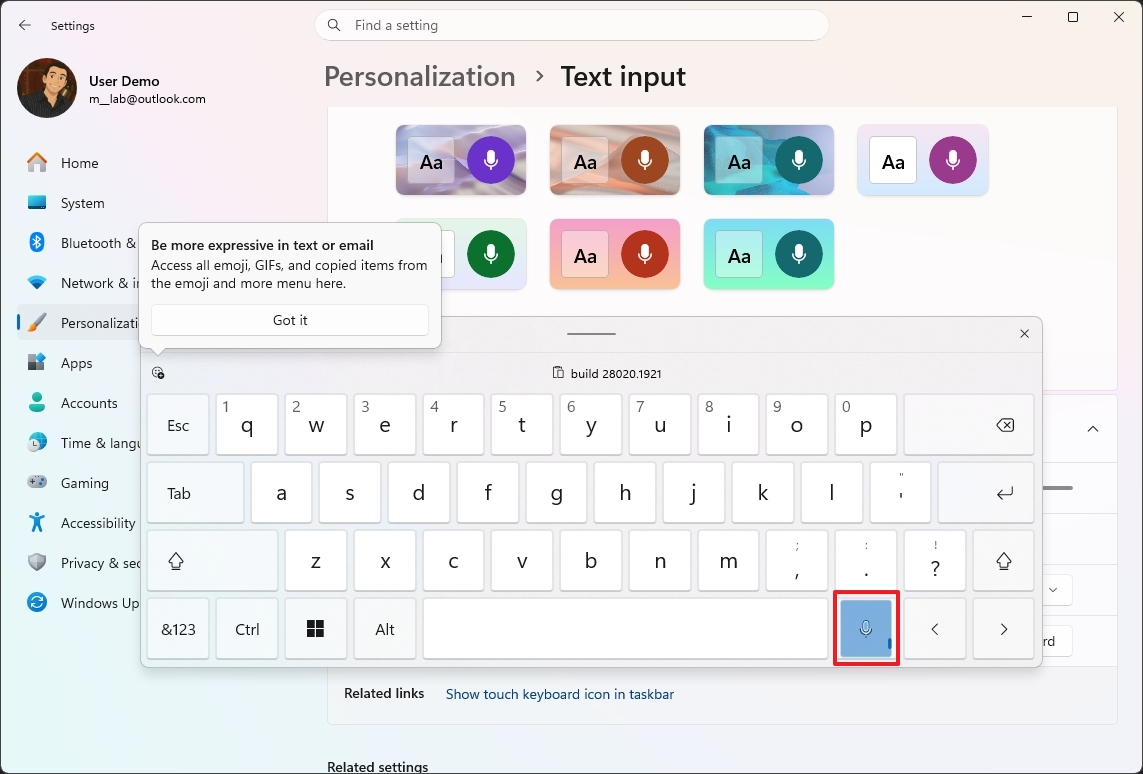
The new design replaces the full-screen overlay with a new Voice Typing button with animations directly on the dictation key.
12. Windows Update overhaul
As previously available in other channels, starting with build 28020.2134 and 29591 for version 26H1 and Feature Platforms, Microsoft is rolling out significant changes to the Windows Update system.
First, during the Out-of-box Experience (OOBE), it's now possible to skip updates during the initial setup to get to the desktop more quickly.
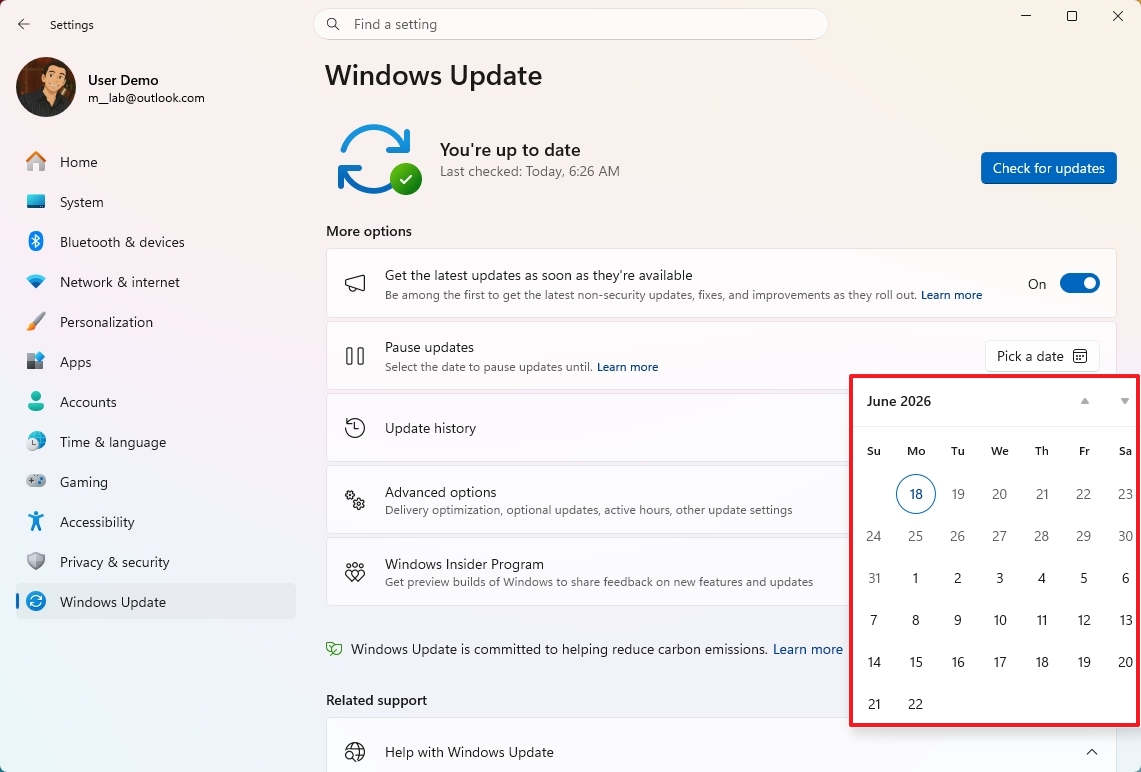
In the Windows Update settings, you can now pause updates indefinitely. However, you can only do this in 35-day blocks, and you must complete the reschedule to prevent the system from resuming updates automatically.
Finally, the software giant is also updating the Power menu in the Start menu always to restart or shut down independently of updates. Furthermore, the company is updating the labels it uses for updates to make it clear which updates you're installing on your computer.
13. Shared Audio feature
On Windows 11 build 29591, as part of the Feature Platform version, you'll now have access to the new "Shared Audio" feature that lets two people listen to the same audio from one computer.
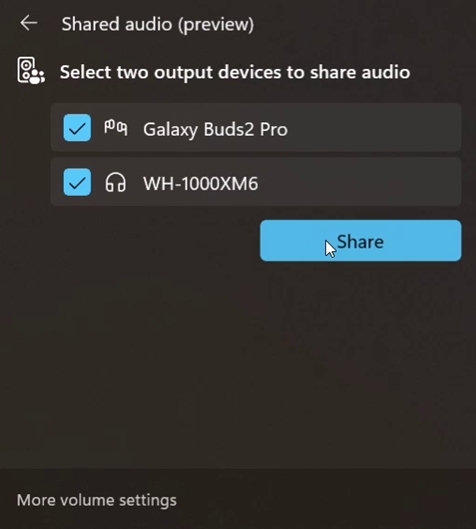
The feature works by using Bluetooth LE Audio broadcast technology to stream the same audio to two Bluetooth peripherals.
Shared Audio is available through the Quick Settings flyout, and selecting the two supported devices already connected to the computer.
Microsoft is also including an indicator in the Taskbar to indicate to the user that the audio is being shared.
Windows Central's Take
One thing I'm noticing about these builds is that Microsoft finally seems to be spending more time fixing long-standing friction points rather than chasing headline features. A lot of these changes are small on paper, but they affect parts of the operating system that users interact with every day.
The reversal of Taskbar positioning is probably the clearest example. I've lost count of how many times Windows 10 users complained after moving to Windows 11 and realized they could no longer place the Taskbar at the top or the sides of the screen.
I'm also glad to see Microsoft toning down Widgets. Over the last few releases, the company pushed too hard on alerts, badges, and news feeds that many users ignored. Making the experience quieter by default feels like the right move.
The changes for File Explorer and Search are the kind of improvements that rarely make flashy headlines but genuinely improve the experience over time. Prioritizing local apps and files over web results in Search is something Windows 11 should have done from the start.
I also think the Windows Update overhaul is really important because it gives users more control during setup and over update scheduling, the kind of flexibility that power users have been asking for for years. It won't completely change how people feel about Windows Update overnight, but it's another sign the company may finally be easing off some of the forced behavior introduced during the Windows 10 era.
What are your thoughts about these latest Windows 11 changes? Let me know in the comments.
- Windows 11 on Windows Central — All you need to know
- Windows 10 on Windows Central — All you need to know
Explore more in-depth how-to guides, troubleshooting advice, and essential tips to get the most out of Windows 11 and 10. Start browsing here:

Join us on Reddit at r/WindowsCentral to share your insights and discuss our latest news, reviews, and more.